Marlin Tyre and Mechanical Workshop Software connects to integrated suppliers through the Megabus EDI Platform.
The EDI Platform enables direct and updated:
- Supplier orders: Orders can be submitted directly to suppliers, who return acknowledgements and delivery schedule updates
- Supplier inventories: Regularly updated stock levels can be viewed to inform supplier orders
- Item creation: Items and account-specific pricing can be added automatically from supplier catalogues, and updated each morning
To enable the EDI platform integration, please contact the Megabus Support Team.
What is available varies by supplier: Some suppliers support electronic orders but do not provide supplier inventories.
Some integrations add items without pricing and do not support EDI ordering.
The Megabus EDI Platform is being being rolled out to pilot sites before becoming generally available.
If you are interested in using the platform, please contact your account manager.
Submitting Orders
The EDI delivery method is selected by default once a supplier is set up.

To submit an order electronically:
- Create the supplier order and add products as usual
- Click the Submit button (top-right of module)
- Check that the Electronic delivery method is selected
- Click Submit
The order status changes to Pending Receiving and can be received and invoiced as usual.
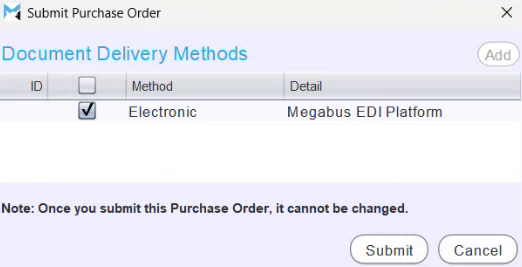
Once a purchase order is submitted electronically, it cannot be changed.
Item Validation
Two optional checks can run when an order is submitted:
- Validate Catalog on Submit: Checks that all items on the order are in the supplier's catalogue group, so you can ensure only valid items are ordered
- Validate Unit Cost on Submit: Checks that unit costs match the supplier's catalogue pricing
Suppliers will send back an error if they do not recognise a product code.
To enable them, please contact the Megabus Support Team.
Tracking Orders
Suppliers confirm receipt by returning an External Order Number.
The Integration Status then shows Submitted, and changes to Acknowledged once the supplier has acknowledged the order.
To add the tracking columns:
- Right click on the Supplier Orders column headings
- Select Configure Columns
- In the Column Set pop-up, click Add
- In the Add Columns pop-up, tick External Order Number and Integration Status, then click Ok
- Click Ok again

External order numbers are assigned by Megabus, not external suppliers themselves.
Delivery Schedules
Acknowledged orders have a Status button at the top right of their Order Details list.
Clicking it colours the Quantity column based on the requested delivery date and the supplier's schedule:
- Green: All stock will be delivered before the requested delivery date
- Yellow: The supplier cannot deliver the full amount on or before the requested delivery date. It may have a partial delivery.
- Red: There was an error or problem
Hover over a quantity to see the specific delivery information.

The Status button is also available in the Supplier Orders tab of the Item Explorer, where it shows the delivery schedules for all orders of the selected product.
Orders that were not sent electronically do not have a schedule.
See the EDI Supplier Orders help guide for more information.
Viewing Supplier Inventories
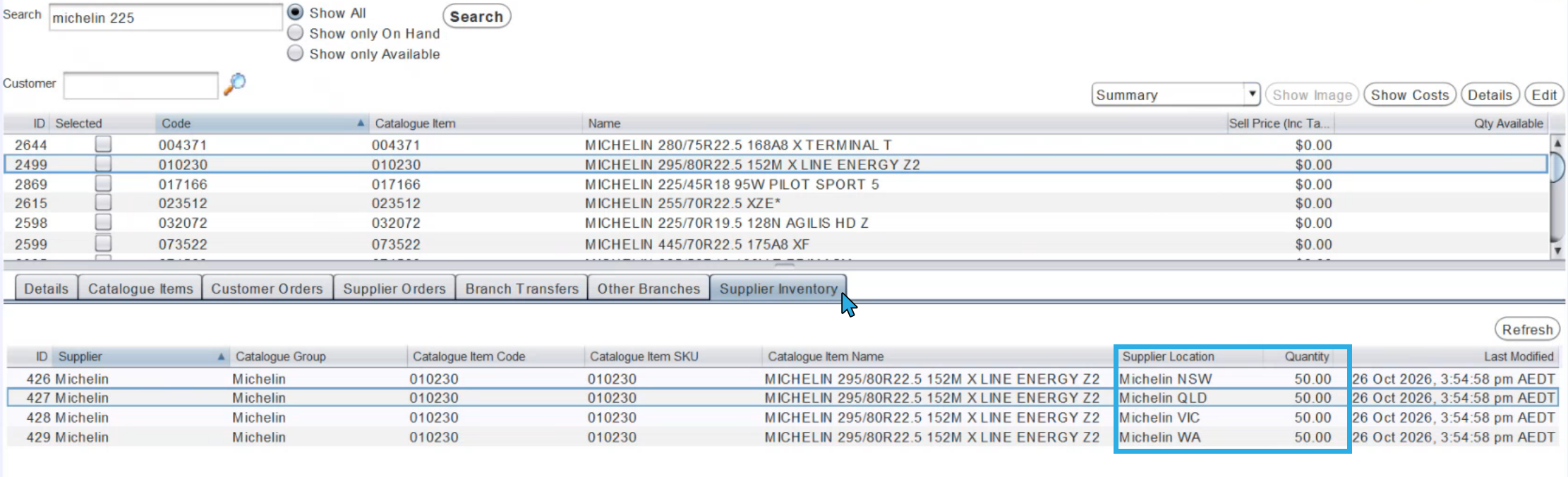
The inventories of suppliers integrated with the Marlin EDI Platform can be viewed in the Item Explorer and used to inform supplier orders.
To view supplier inventories:
- Open the Item Explorer (Daily Activity > Item Explorer)
- Search for and select the item
- Click the Supplier Inventory tab at the top
See the EDI Supplier Inventories help guide for more information.
Supplier inventories are currently only available for Michelin.
More suppliers will be added in future.
Item Creation and Updates
Where available, items include the pricing the supplier offers for your account.
An initial import adds items, catalogue items and pricing details.
Marlin then checks suppliers each morning and:
- Updates pricing changes
- Adds new products as items automatically
Update Notifications
Emails detailing item changes can be sent to specified recipients with each update.
Use them to review new products and pricing changes, for example to set sell prices on newly added items.
If nothing has changed, no email is sent.
See the EDI Item Creation help guide for more information.