Marlin Tyre and Mechanical Workshop Software enables supplier orders to be submitted electronically to integrated suppliers, using the Megabus EDI Platform.
EDI orders are delivered directly to available suppliers, who then return acknowledgements and order status updates.
To enable electronic ordering for a supplier, please contact the Megabus Support Team.
:::(Tip)
Available functionality varies by supplier: Some suppliers support electronic orders but do not provide supplier inventories.
:::
The Megabus EDI Platform is being being rolled out to pilot sites before becoming generally available.
If you are interested in using the platform, please contact your account manager.
Submitting Orders
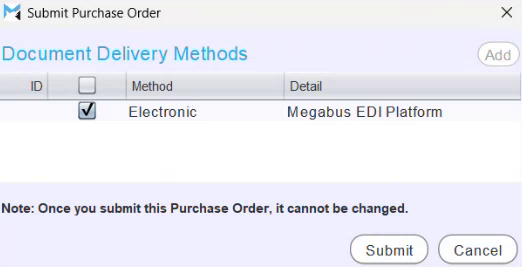
The EDI delivery method will be selected by default once suppliers are set up.

To submit an order electronically:
- Create the supplier order and add products as usual
- Enter the Requested Delivery Date to use with Delivery Schedules
- Click on the Submit button (top-right of module)
- Check that the Electronic delivery method is selected
- Click Submit
There is also setting which can make that default to a specified number of days in the future, so at minimum just a note to double check that is appropriate?
The order status will change to Pending Receiving and can be received and invoiced as usual.
Once a purchase order is submitted electronically, it cannot be changed.
Tracking Orders
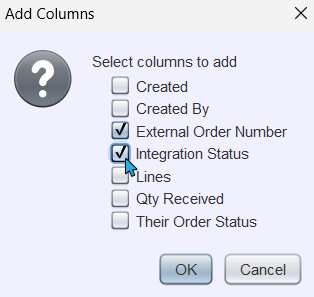
External Order Number and Integration Status columns can be added to the Supplier Orders list to help track electronically submitted orders.

Suppliers confirm they have received orders by returning an External Order Number.
The Integration Status also changes to Submitted.
Once the supplier has acknowledged the order, the Integration Status changes to Acknowledged.
External order numbers are assigned by Megabus, not external suppliers themselves.
Adding EDI Columns
To add the columns:
- Right click on the Supplier Orders column headings
- Select Configure Columns
- In the Column Set pop-up:
- Click Add
- In the Add Columns pop-up:
- Tick the External Order Number and Integration Status checkboxes
- Click Ok
- Rearrange the column order as required
- Click Save
Delivery Schedules
Acknowledged orders have an additional Status button at the top right of their Order Details list.

Clicking Status colours the Quantity column based on the requested delivery date and the supplier's schedule:
- Green: All stock will be delivered before the requested delivery date
- Yellow: The supplier cannot deliver the full amount on or before the requested delivery date
- Red: There was an error or problem

Hovering over a quantity shows the specific delivery information.
Item Explorer
The Status button is also available in the Supplier Orders tab of the Item Explorer.

Click Status to see the delivery schedules for all orders of the selected product.
Orders that were not sent electronically do not have a schedule.
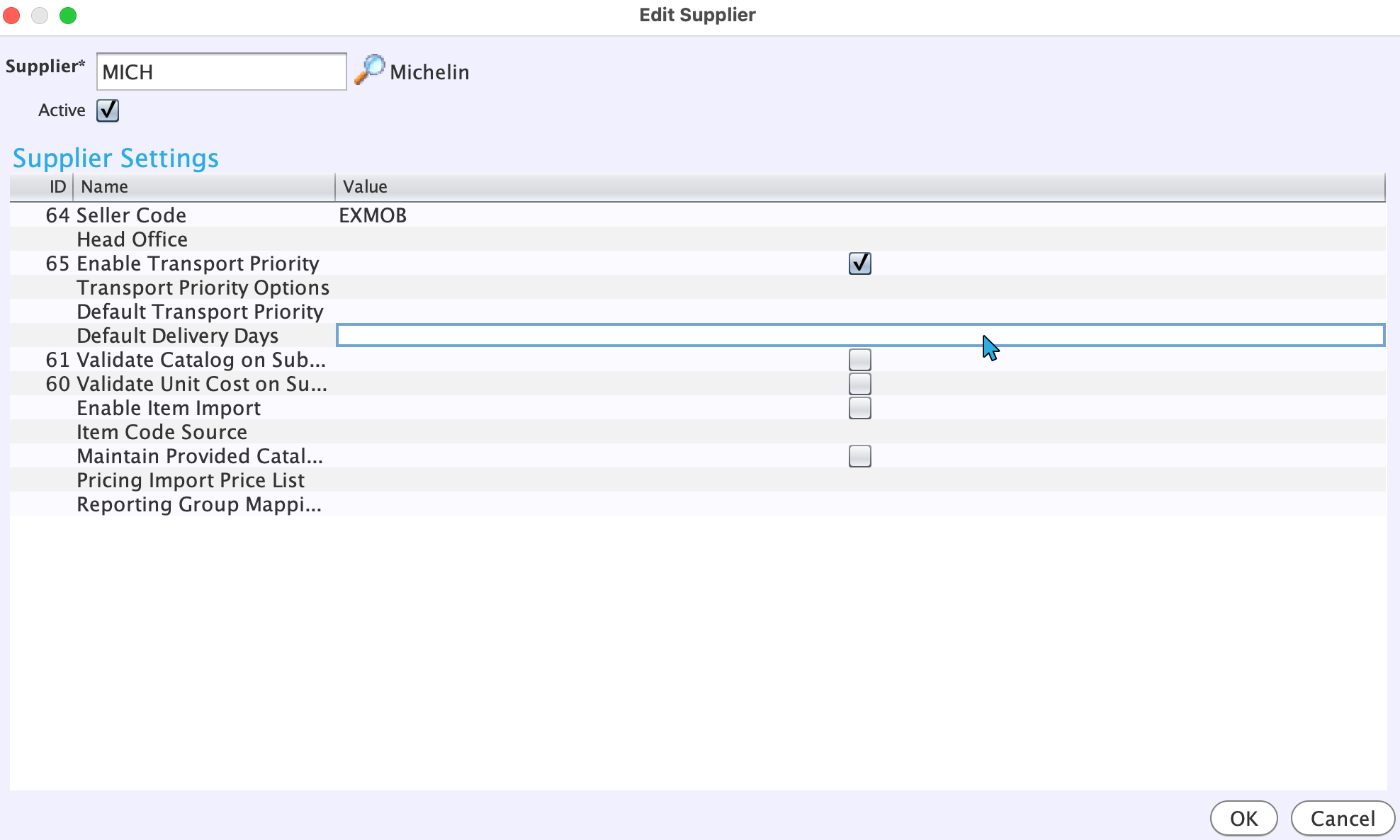
Default Delivery Days
To change the default requested delivery days for a supplier:
- Go to System > Company > Integration Partners
- Open Megabus EDI Platform in Edit mode
- Double CLick on the supplier in the Suppliers list at the bottom-right
- Edit Default Delivery Days field
Item Validation
Item validation can be applied to electronically submitted orders when they are submitted:
- Validate Catalog on Submit: Checks that all items on the order are in the supplier's catalogue group
- You can then fix the item in Marlin before submitting
- Validate Unit Cost on Submit: Checks that unit costs match the supplier's catalogue pricing
Without these validations, suppliers will send back an error if they do not recognise the product code.
To enable EDI validation, please contact the Megabus Support Team.