leave screenshots for now, but things will change
Marlin Tyre and Mechanical Workshop Software enables digital vehicle inspections (DVI)—replacing paper checklists with inspections completed on mobile devices.
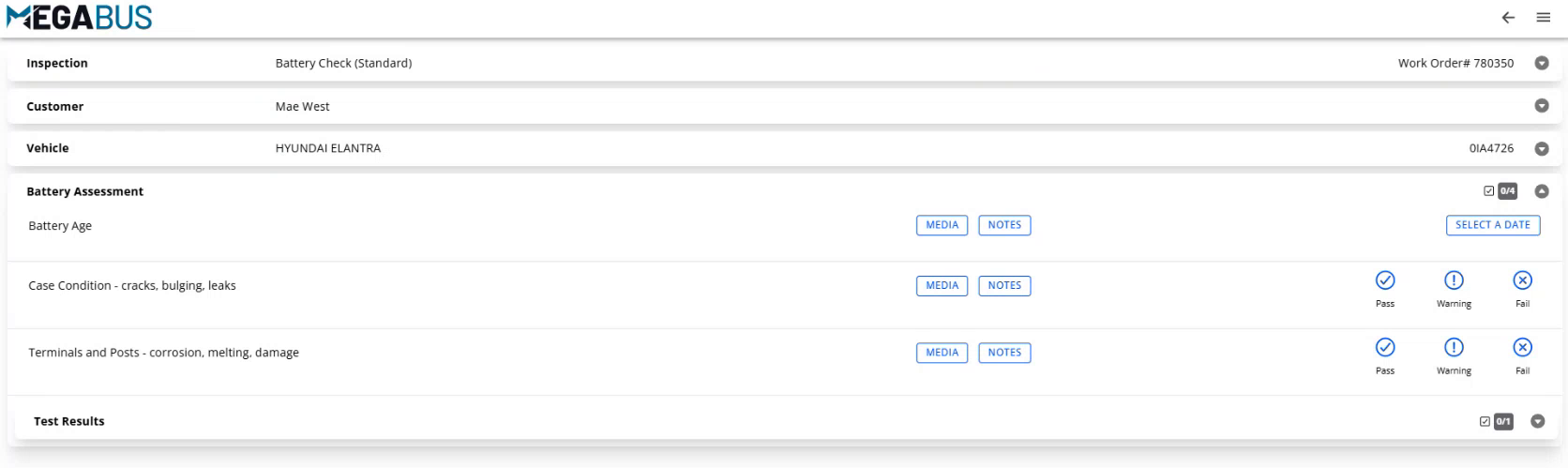
Technicians work through an inspection template in the app, marking each item as Pass, Warning or Fail, or recording measurements, and adding notes, photos and videos.
Results return to the customer order, where failed items are added as pending jobs (where a matching job types exists).
Jobs can then be quoted and sent to customers for approval by SMS or email.
Digital Vehicle Inspection functionality is only available on specific contract tiers and may require an upgrade.
:::(Warnng) (Note)
Digital Vehicle Inspection is being being rolled out to pilot sites before becoming generally available.
If you are interested in using DVI, please contact your account manager.
:::
Setting Up DVI
To use DVI, you first need to set up job types and inspection templates.
To use DVI:
- Add job types for the work that failed or warning items can create, such as Batteries or Tyres & Wheels
- Add inspection templates
For businesses using jobs extensively:
- Link item reporting groups to job types to add jobs to orders automatically
- Link inspection templates to job types to add inspections to orders automatically
Customer Approval Messages
When additional work is identified by an inspection, a report with the quoted jobs can be sent to the customer by SMS or email.
How to configure the message to use ...?
BA: System > Document Delivery > Customer Message Templates. Then in enterprise settings, the template is set on the CustomerOrder.JobApprovalNotifications.Email/SMS settings
Adding Jobs and Inspections to Orders
screen shot
Jobs and inspections will be automatically added whenever a linked item is added.
link to set up?

Manually Adding Jobs and Inspections
Jobs and inspections can also be manually added using the buttons at the top of the Order Details list:
- +Job: adds a job to the order
- +Inspection: adds an inspection to the order
- DVI: opens the inspections for the order, where the customer's report can be viewed and sent
- Only available once the order includes an inspection
Inspections do not need to be inside jobs.
Sending Inspections
To send an inspection to a technician:
- Add an inspection to the customer order
- Select the Technician field at the top of the Order Details list or on the Job that contains the inspection
- Save the order to send the inspection to the Marlin mobile app
screenshot
Performing Inspections
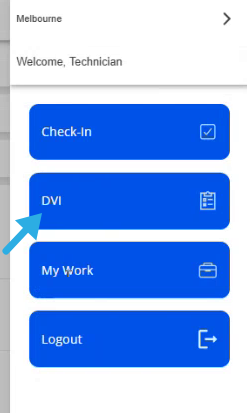
To perform an inspection:
- Log in to the app as the specified technician
- Open the menu (three-lines) and select DVI
- Select the inspection from the list
- Review the customer and vehicle details at the top
- Open each section and complete the items
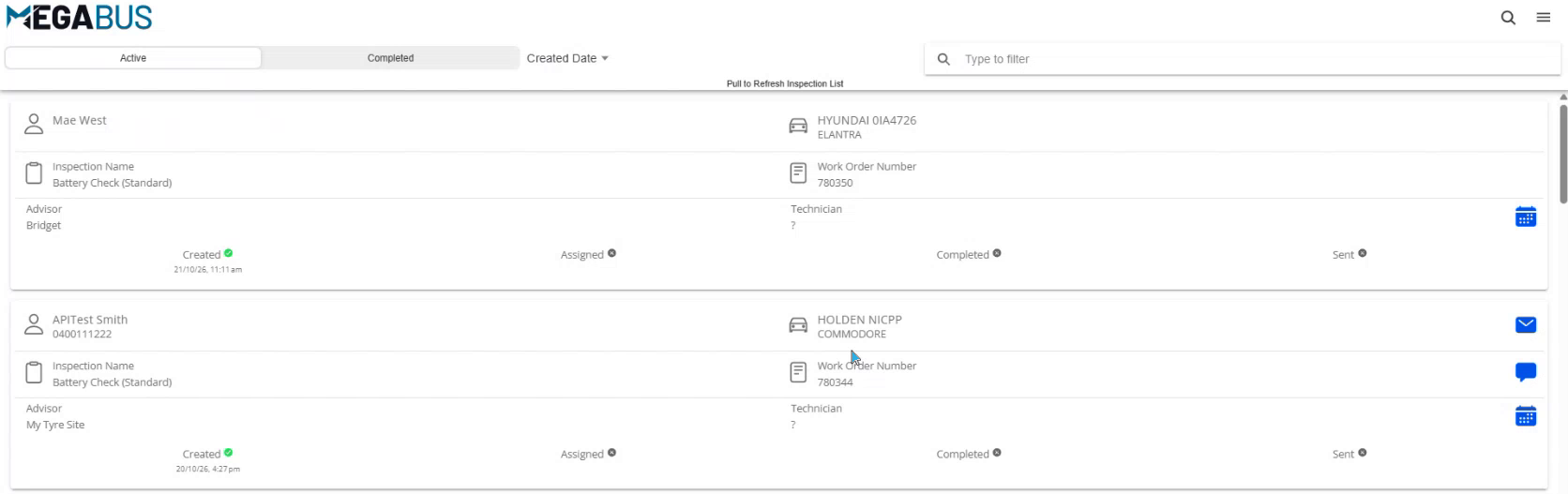
The inspection saves as you go:
- To save manually, tap the Save icon at the bottom
- Once saved, the booking status is updated to Inspection Complete (if the order has a booking)
is this true, what about ones you are saving to come back to?
BA: no, status only updated when the inspection clicks Transfer
The Inspections list can be sorted by Created Date and filtered using the search box at the top.

Inspection Items
To complete an inspection item:
- Traffic light items: tap Pass, Warning or Fail
- Date items: select the date
- Numeric measurement items: enter the measured value, which can set the traffic light result based on the template constraints
- Notes items: enter the text
examples of each?
Additional notes or media may be required for warning and fail items depending on the inspection template settings
Adding Images or Videos to Inspections
To add a photo or video to an inspection item:
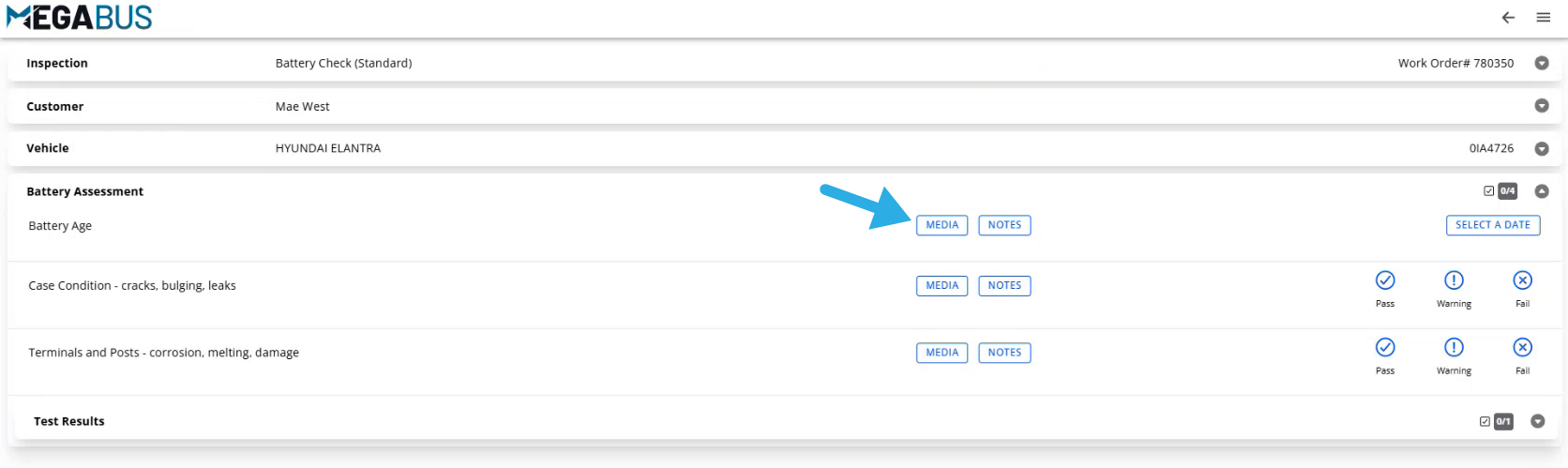
- Tap the Media box in the middle of an inspection item
- Take a photo or video, or upload one from the device
To send media back to the customer order:
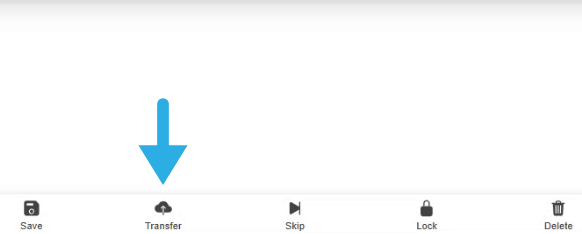
- Tap the Transfer icon at the bottom of the Inspection window
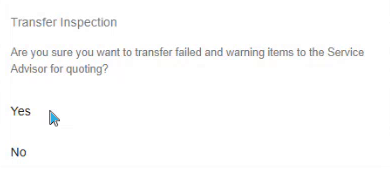
- Tap Yes to confirm sending failed and warning items to the service advisor for quoting
BA: to me this reads like you can send back that media before you've completed the inspection. Clicking transfer stops you from being able to edit further so i wouldn't say this.
Adding Notes
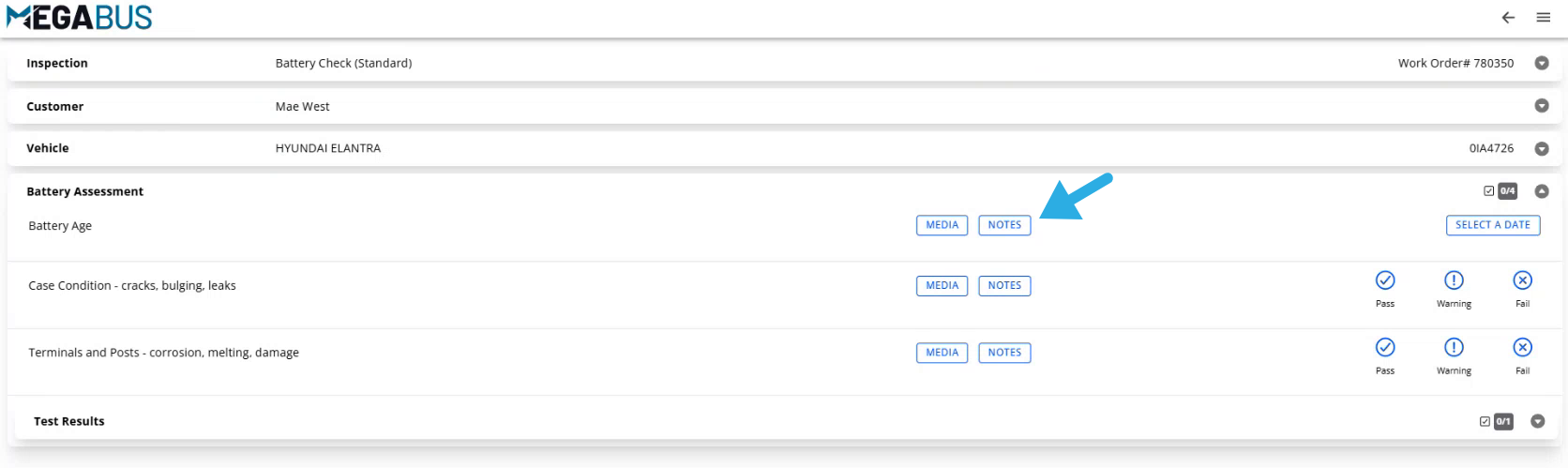
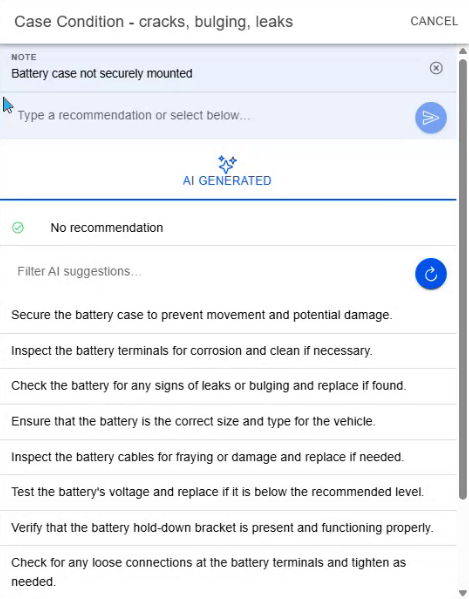
To add a note and recommendation to an item:
- Tap the Notes box in the middle
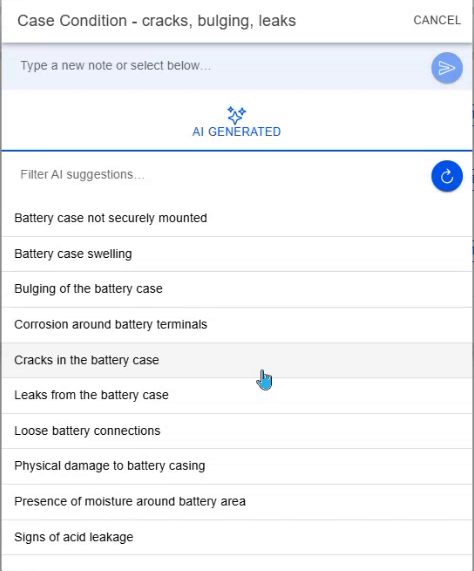
- Select a suggested note
- Or enter your own
- Select a recommendation from the list
- Or enter your own (or select No Recommendation)
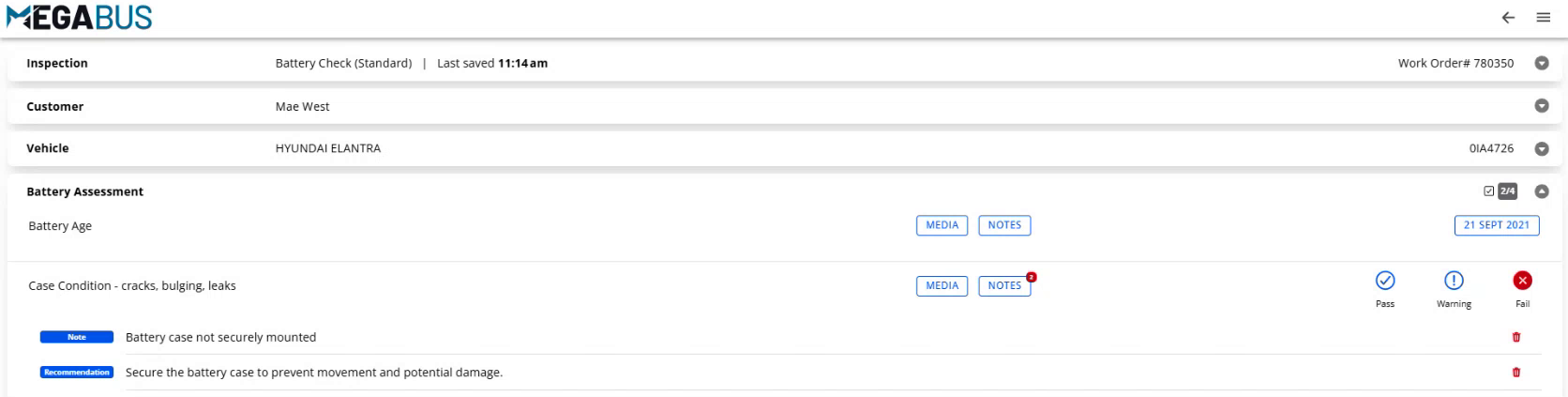
Saved notes are indicated by a red number icon on the Notes box in inspection items.
Inspection Results
The Inspection line shows the number of failed, warning and passed items.
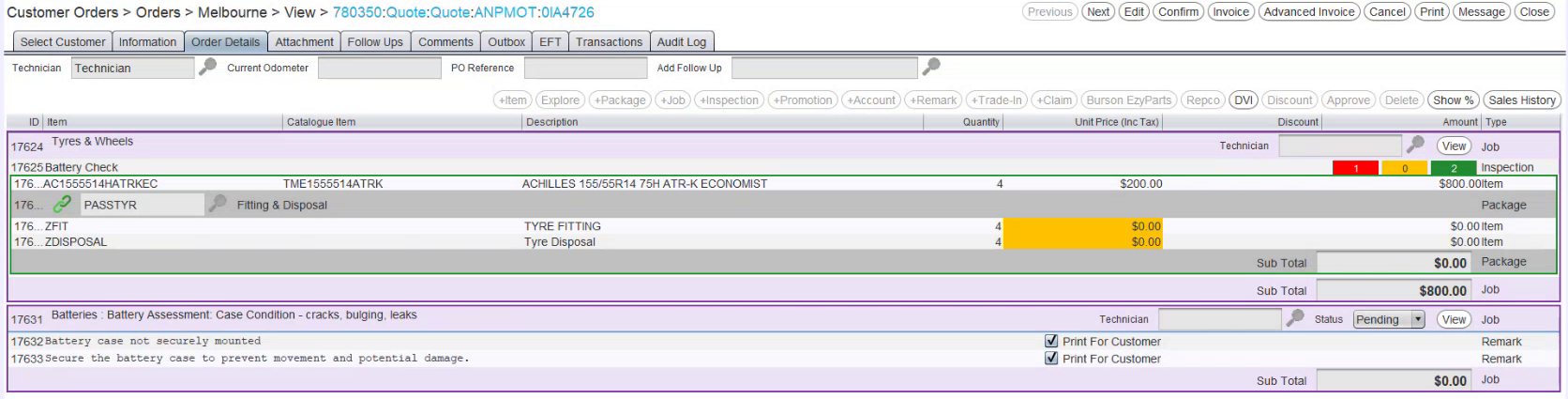
Jobs are added for each failed item:
- Each job is named using its job category, section and item
- Notes and recommendations are added as remark lines
- The default job Status is set to Pending
Warning items are also added as jobs when Include warning on transfer is turned on in the inspection template.
Sending Quotes
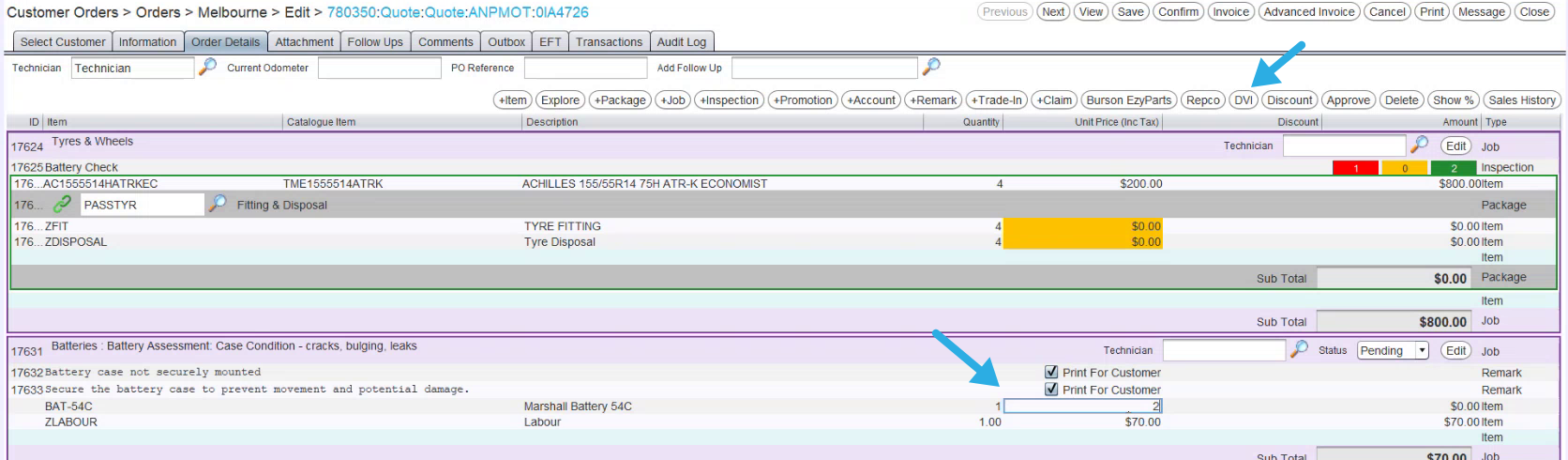
To quote suggested work:
- Add parts and labour to the job as usual
- Click on the DVI button at the top-right of the details list
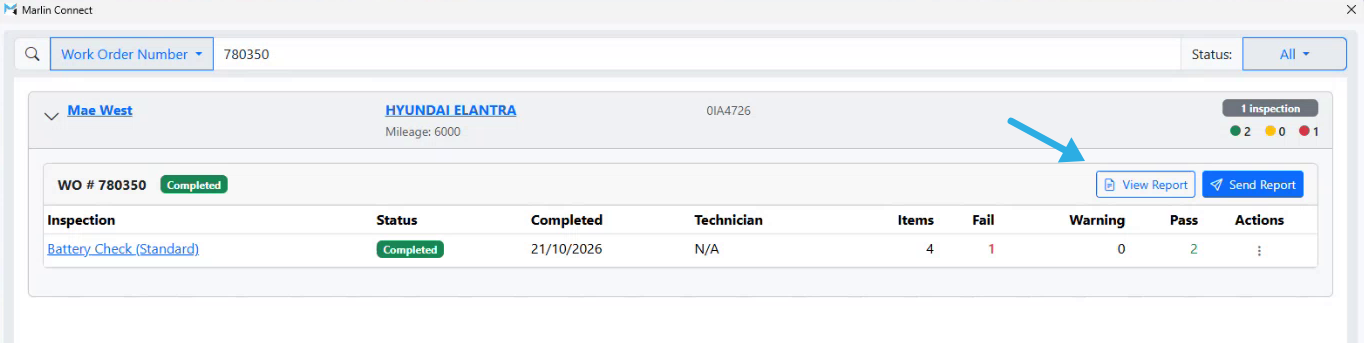
In the Marlin Connect window that opens:
- Find the order in the list
- Can be searched for by Work Order Number
- Click View Report
BA: shouldn't have to search for the order. It'll default to already showing inspections for the order you were just in.
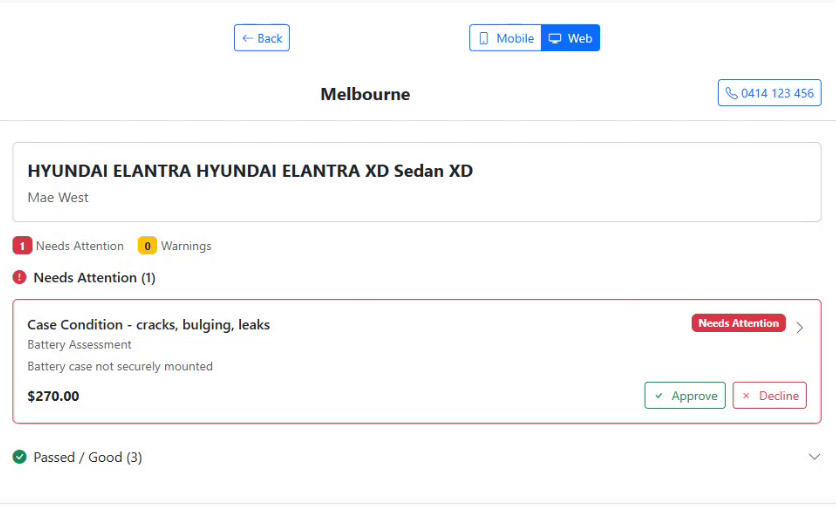
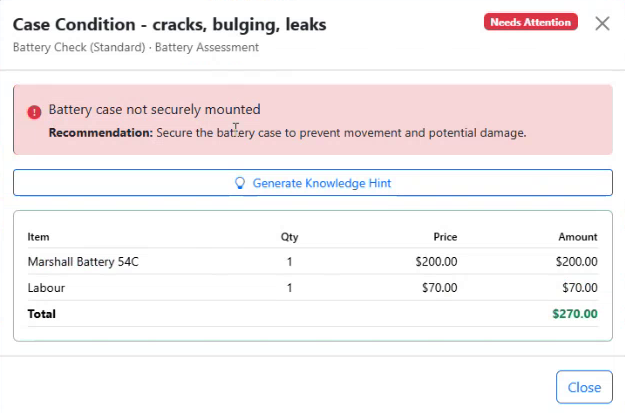
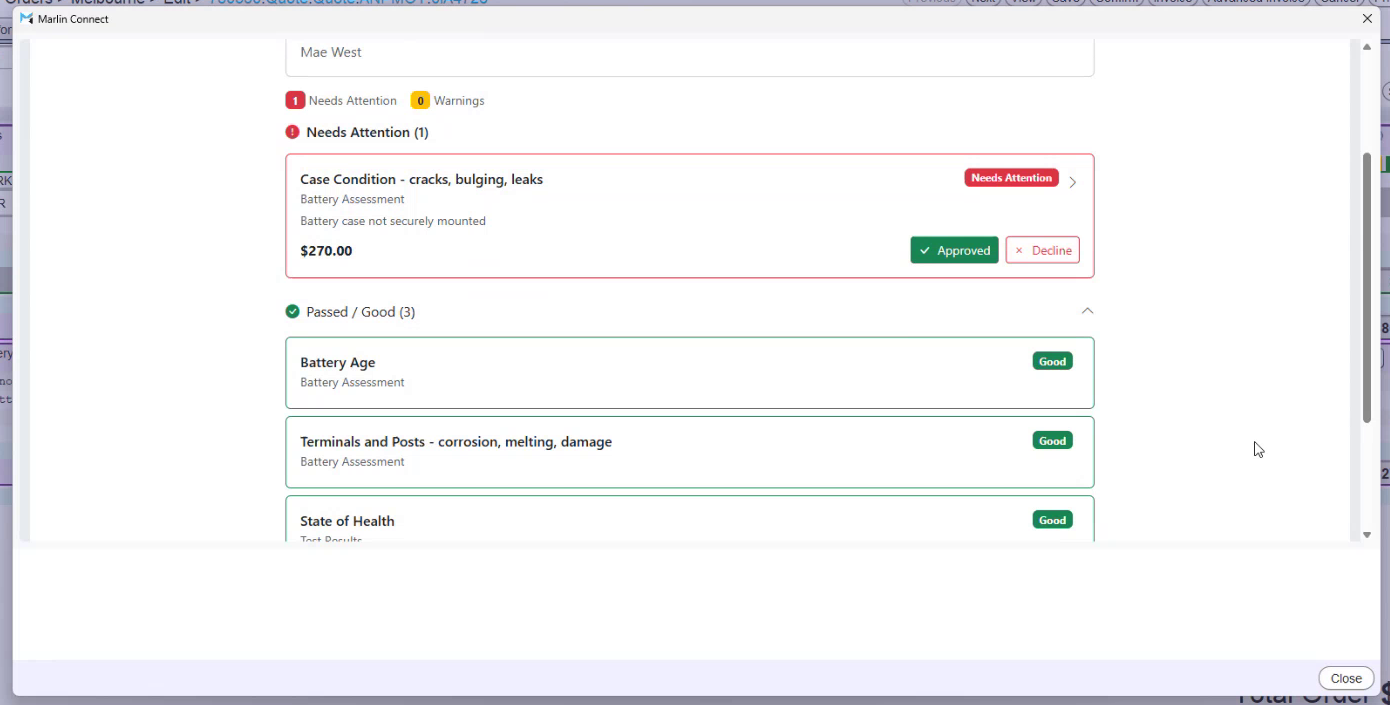
The preview shows the items that need attention, along with notes, recommendations and a breakdown of the quoted work:
- Click or tap an item to show more details
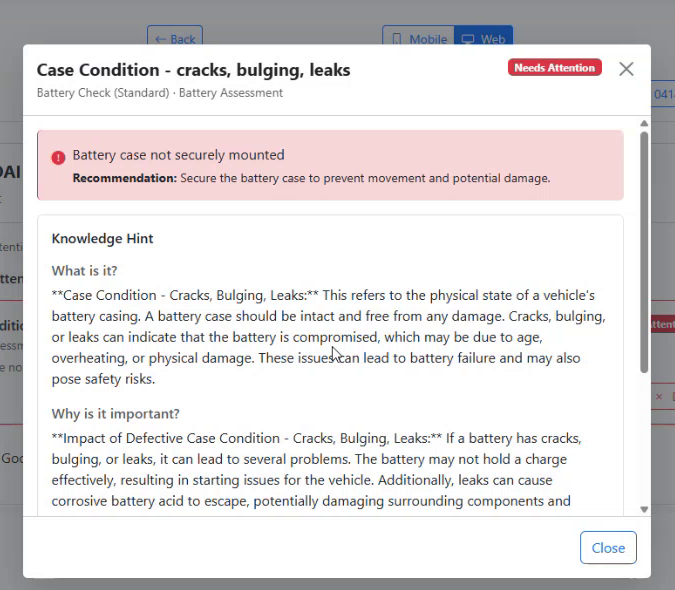
- Clicking Generate Knowledge Hint adds AI generated information on the item and why the quoted work is needed
I'd move this generate knowledge hint down to what the section saying what the customer can do. I'd assume the staff know why it's important, this is more intended for the customer.
Once all items have been checked:
- Click Send Report to send
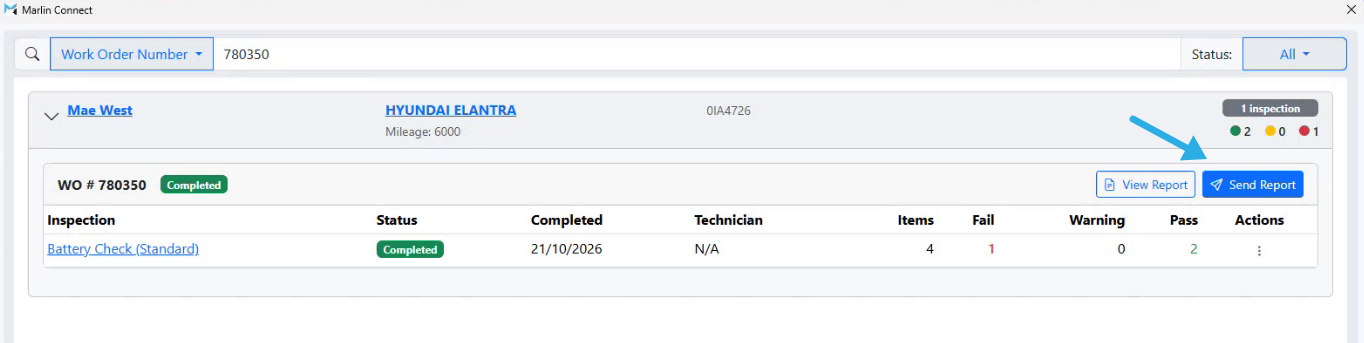
The customer receives a link to the inspection report by SMS or email, using the pre-configured message.
message? - check in message?
If the order has a booking, the booking status is updated to Authorisation Required.
Customers must have a contact with an email address or phone number to send inspection reports to them.
Customer Approvals
Once inspection reports are received, customers can open the link and view their inspection results.
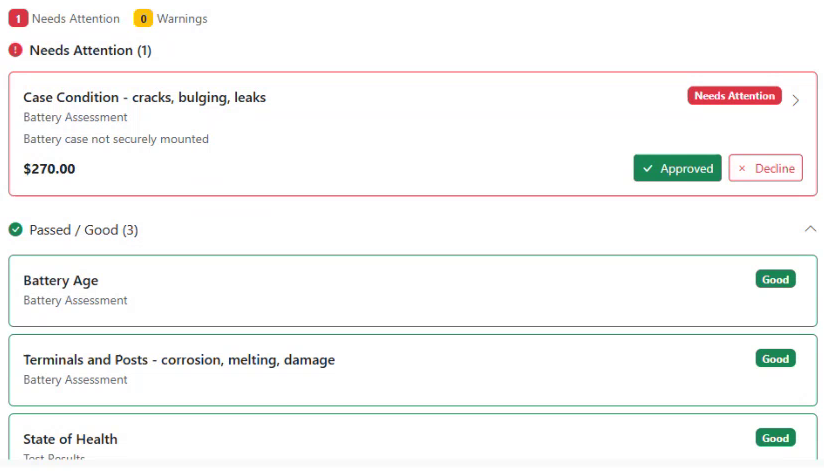
They can then:
- Select Approve or Decline for each quoted job
- Tap Submit to submit their decisions
Once the customer submits their decisions, the status of each job is updated accordingly.
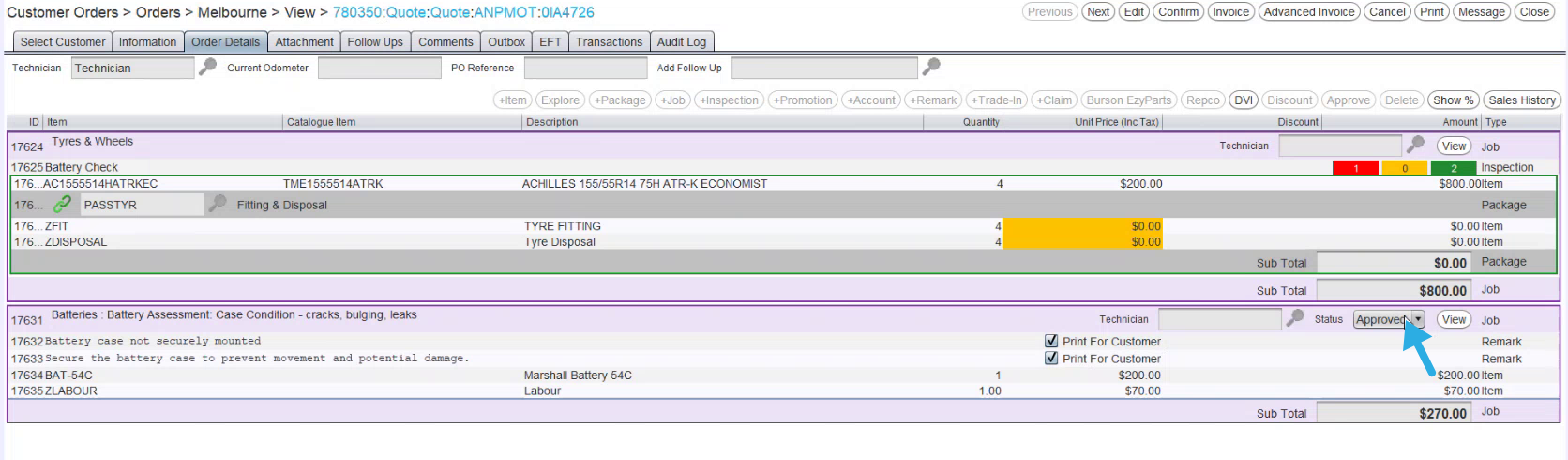
Better screenshot without mouse on box
does the green outline mean it's approved - this is not clear - or just package?
Refresh the order to see the updated status?
Customers only approve or decline each job as a whole, and cannot approve only part of a job.
Declined Jobs
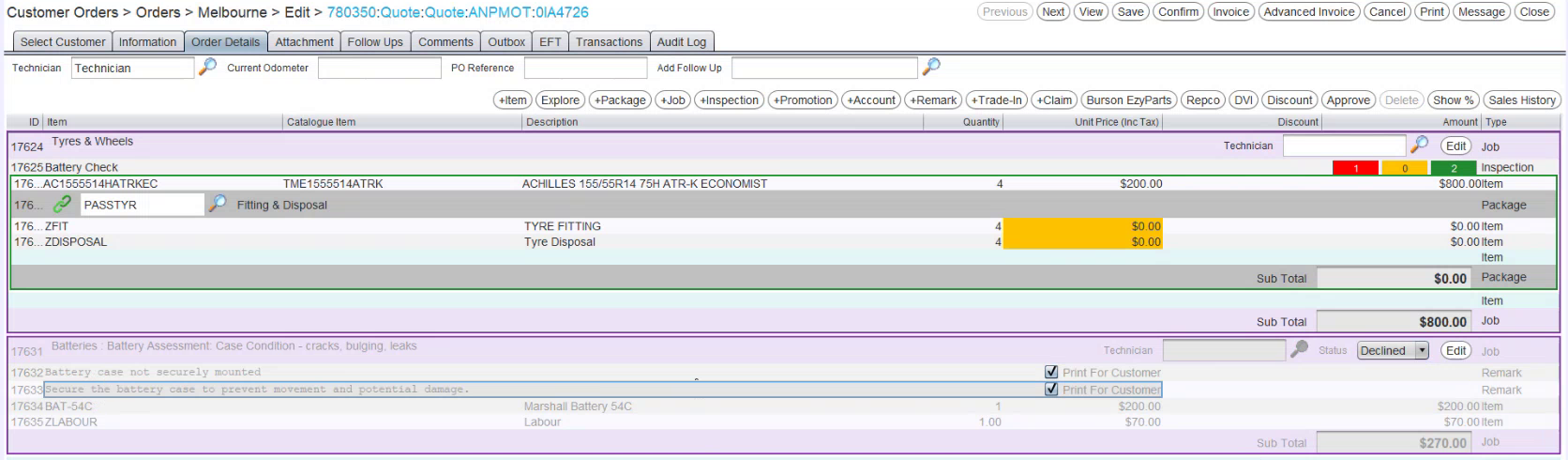
Declined jobs remain on orders but are greyed out and excluded from the order total and final invoice.
Approval Histories
To view a job's approval history:
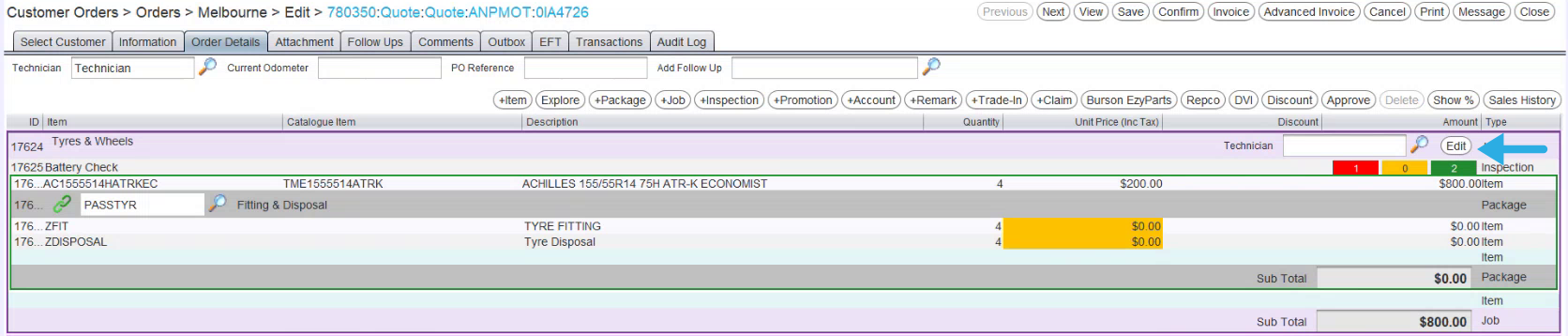
- Click Edit in the job header
In the View job pop-up that opens:
- Click on the Approval History tab
- Click Refresh to update the list
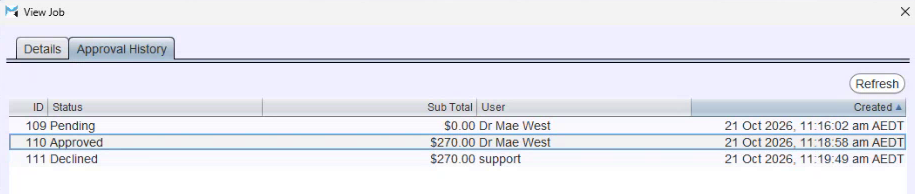
Customer decisions show the customer's name, distinguishing them from changes made by staff.
If the job value is changed after approval, the history shows the value the customer approved.
DVI Reports
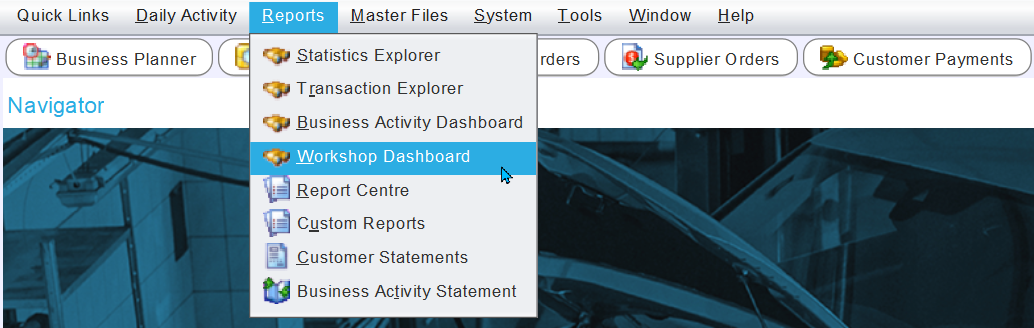
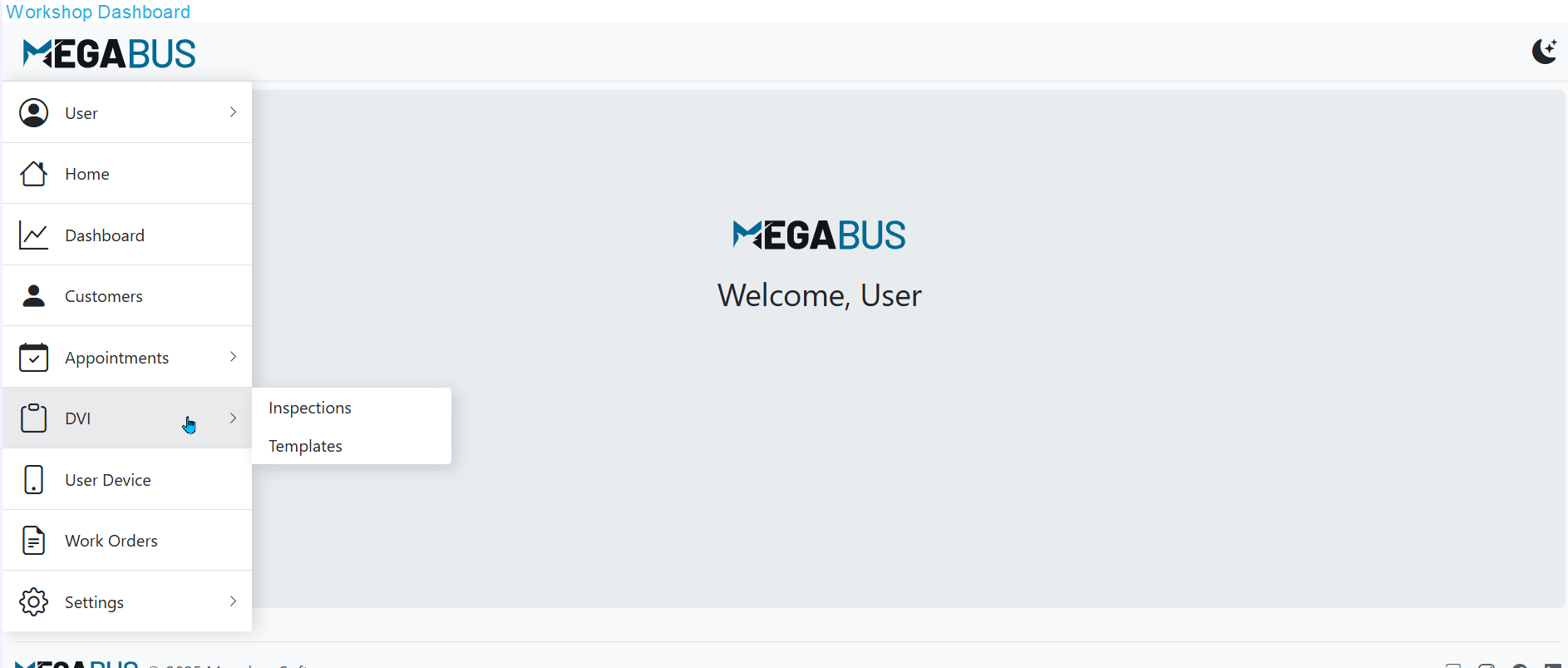
DVI reports can be viewed by selecting Reports > Workshop Dashboard from the menu bar.
To view DVI Reports:
- Select
 DVI in the menu on the left
The DVI Dashboard will open, showing a breakdown of Inspections and Inspection Reports.
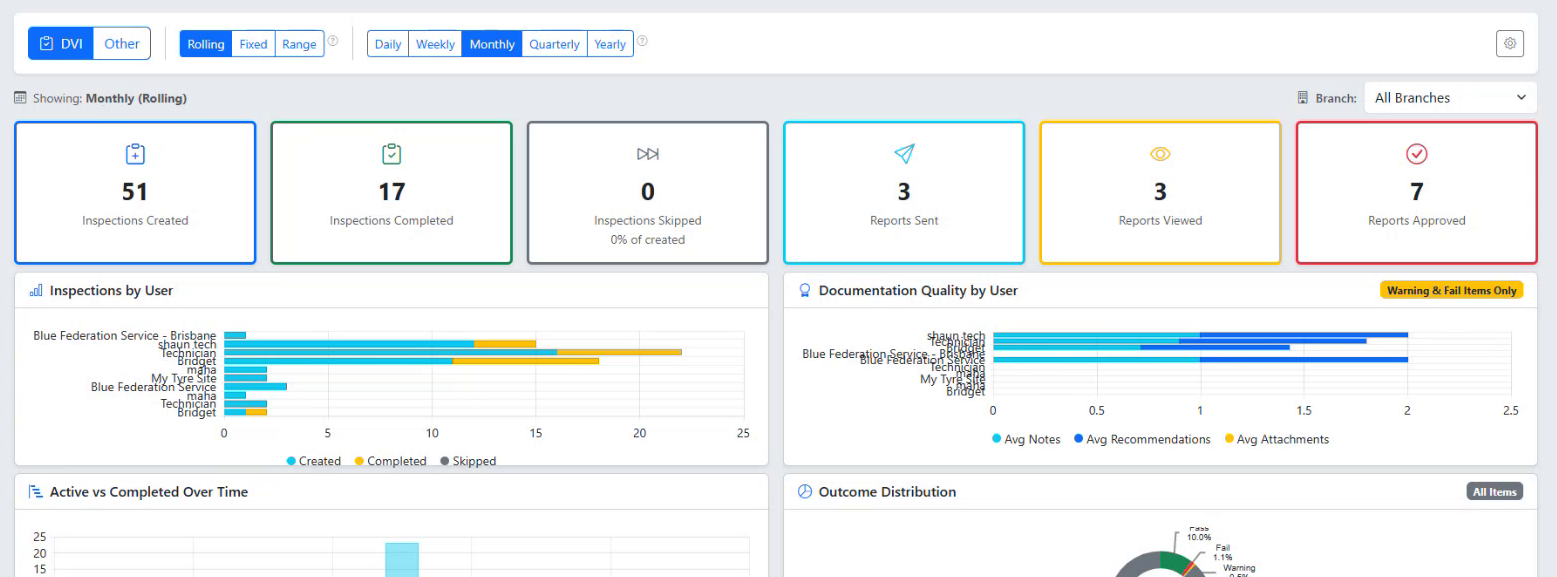
check screenshot data details