Marlin Tyre and Mechanical Workshop Software groups customer order lines into individual jobs.
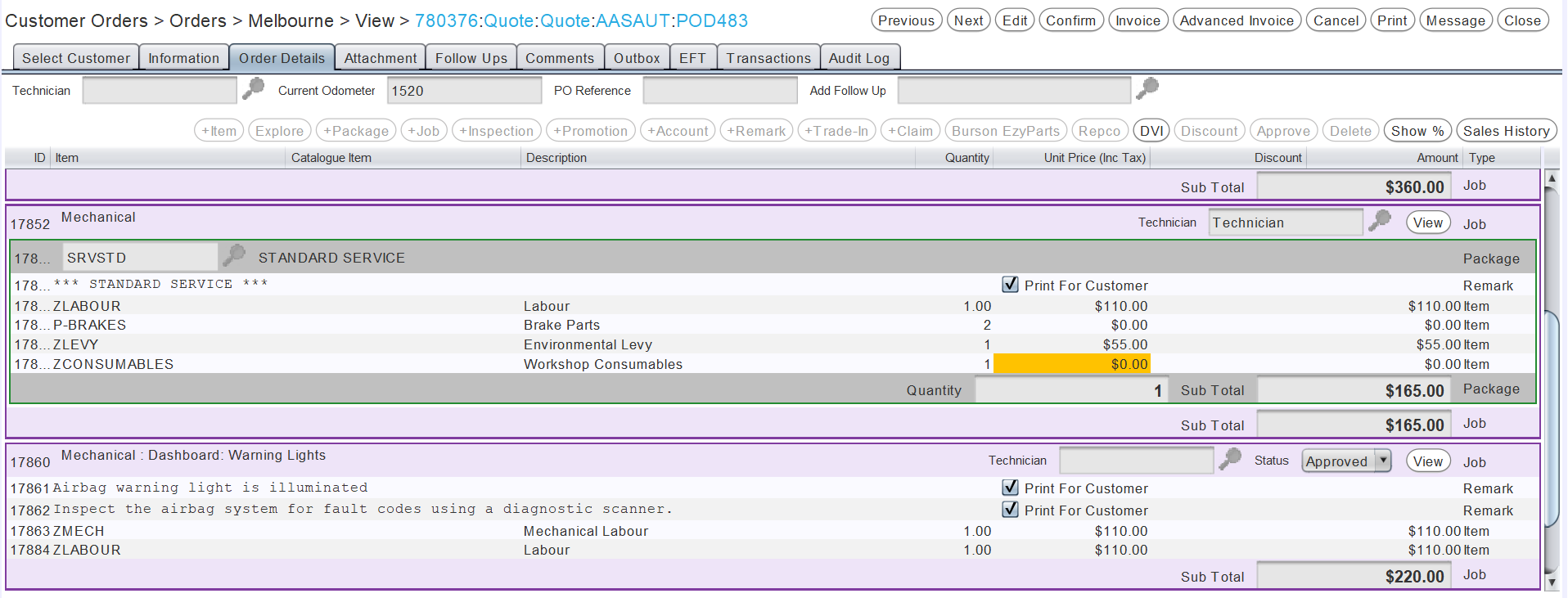
Jobs can be used to:
- Split an order into parts performed by different technicians
- Split an order into parts that need different equipment
- Keep all work on one order for a single customer
- Group work quoted from failed inspections
Jobs can be added:
- Automatically, when an item from a reporting group assigned to a job type is added to the order
- Manually, then have items and other details added to them as usual
Job types can also be linked to inspection templates to automatically add Digital Vehicle Inspections (DVI).
Each job can be assigned to a different technician, who can then track their progress using the Marlin mobile app.
The number of job types depends on the services offered and how detailed the business wants to break up work.
Enabling Jobs

To enable jobs:
- Select System > Company > Settings
- Enable the Jobs.Enable enterprise setting
Once enabled, job types can be viewed and edited by selecting System > Items > Job Types from the menu bar.
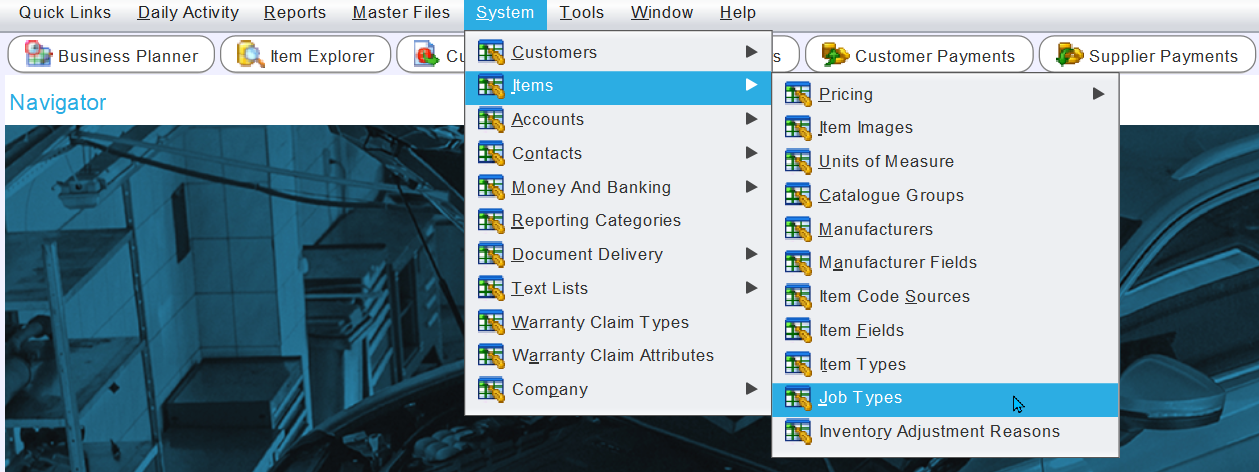
After enabling Jobs, End and Start your Session again to see the new menu option, by going to Daily Activity > Logout.
Adding Job Types
System > Items > Job Types

New job types can be added by clicking the Add button at the top-right of the Job Types module.

In the Add Job Type window:
- Enter a Name for the job type
- Use the section on the right to link to Item Reporting Groups, if required
- Use the list below to add Inspection Templates, if required
link to inspection templates
Job categories can be generic or detailed.
Example: A general Mechanical category or separate categories for different types of mechanical work.
Job Reporting Groups
Adding an item from an assigned item reporting group to an order automatically adds that group's job type as well.

Reporting Groups can be assosciated with jobs using the section on the right of the job type page.
Assigning the Tyres reporting group to a Tyres & Wheels job type adds a Tyres & Wheels job when a tyre is selected on an order.
Any inspections linked to the job type or any add-on packages linked to the item are added at the same time.
Linking multiple reporting groups to a job type places all items added to orders, from those reporting groups, in that job.
Linked Inspection Templates
Adding a job type with assigned inspection templates to an order also adds that template's Digital Vehicle Inspection (DVI) to the job as well.
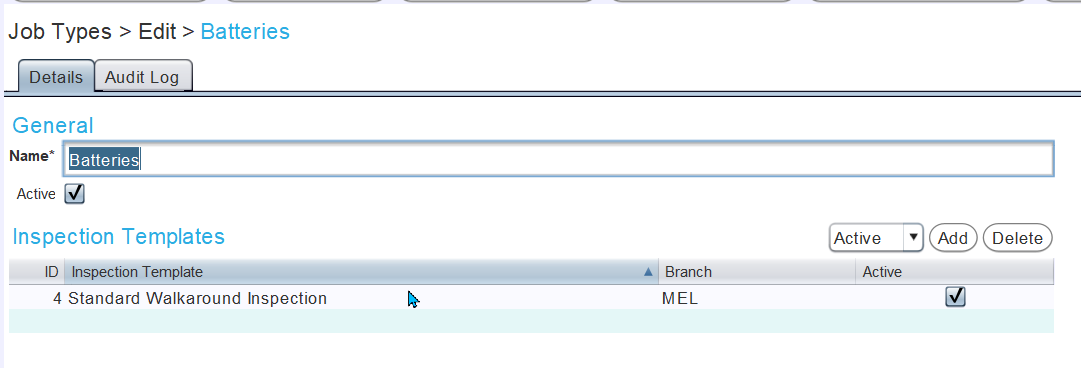
Inspections can be added to job types using the Inspection Templates list at the bottom of the Job Type window.
If a job type is associated with an item reporting group, then associated inspections will be automatically added whenever items belonging to that reporting group are added to an order.
Assigning the Tyre Inspection template to a Tyres & Wheels job that is associated with the Tyres reporting group automatically adds a tyre inspection whenever a tyre is added to an order.
Adding Jobs to Orders
Adding items from reporting groups that have been assigned to a a job type automatically adds that job as well.
However, jobs can also be added manually and then have items and other details added to them as usual.
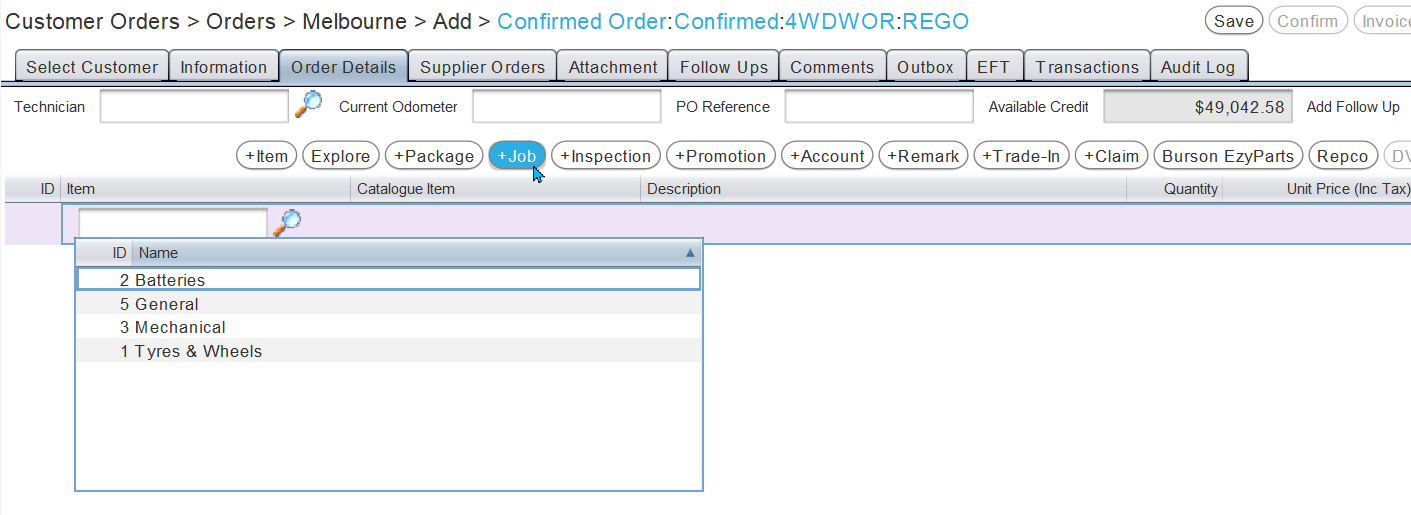
To add a job to a customer order:
- Click the +Job button at the top of the Order Details list
- Use the picker that appears to select the job type
The job grouping will be added to the order detail list, outlined in purple.

Items, packages and other details can then be added to the job by clicking on the line(s) inside it and using the buttons at the top of the module, as usual.
- Existing line details can also be dragged and dropped in and out of jobs, if required
Multiple jobs can be added to the same order by clicking the +Job button again.
Assigning Technicians to Jobs
Jobs can be assigned to different technicians using the Technician field in the job header.

If a job's Technician field is left blank, the job will be assigned to the general technician selected at the top of the Order Details list.
Job Statuses
Changing Job Statuses
Jobs added from failed or warning inspections are given statuses automatically.
Jobs added any other way have blank statuses.
Jobs set to Declined can only be changed again from the Edit Job window.
If required, statuses can be set from the Edit Job window.

To change job statuses:
- Click the Edit button in the job header
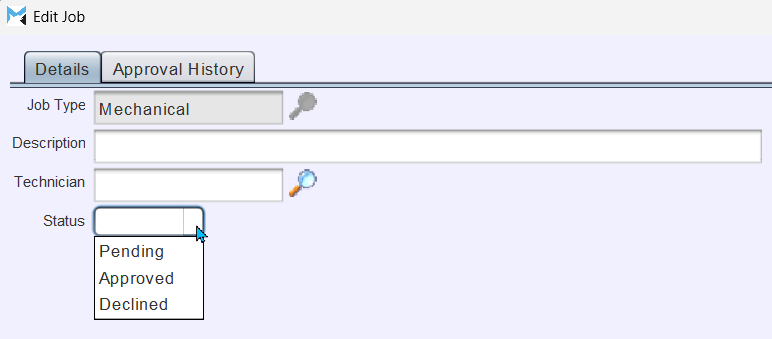
In the Edit Job window that opens:
- Change the Status using the drop-down at the bottom
- Click Ok
Mobile App Jobs
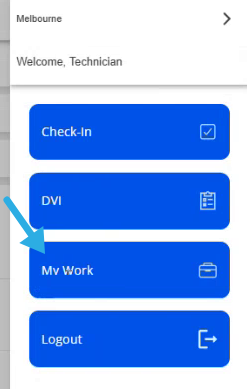
Assigned jobs can be viewed in the Marlin mobile app by opening the menu (three lines) and selecting My Work.
The My Work module will open, showing a list of assigned jobs.
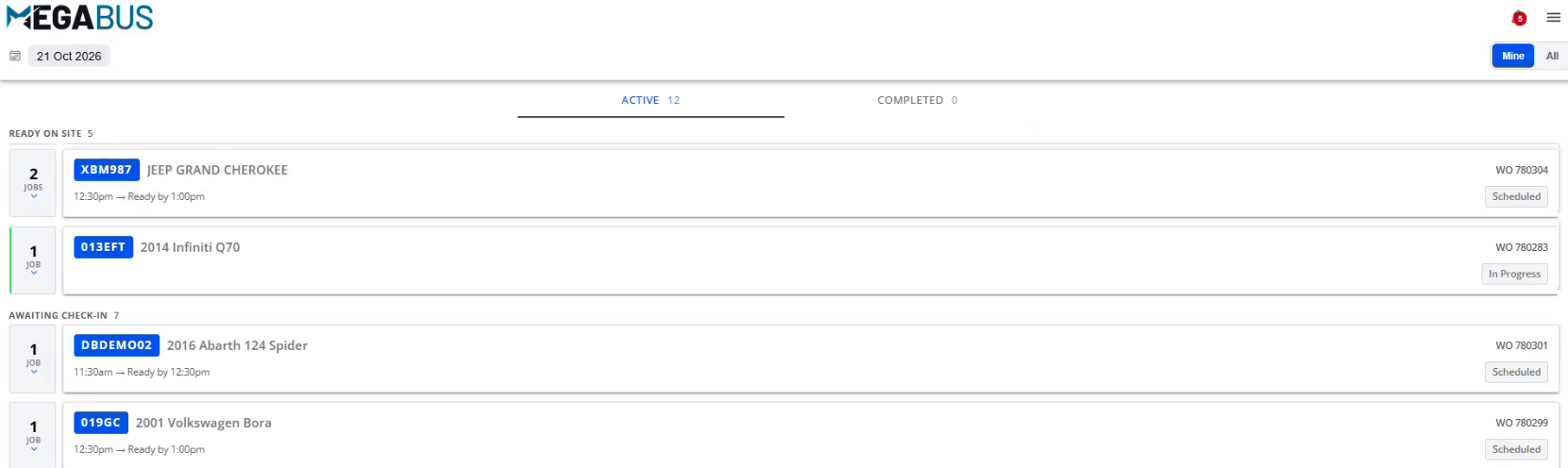
Set the filter at the top right to All to see jobs assigned to other users, for example when helping someone else with a job.
Job Tracking
To track your status on a job:
- Tap on the the job to open it
- Confirm you are working on the job to track time against it
(even if you are already clocked on to another job)