Marlin Tyre and Mechanical Workshop Software replaces paper vehicle checklists with digital vehicle inspections (DVI) completed on mobile devices.
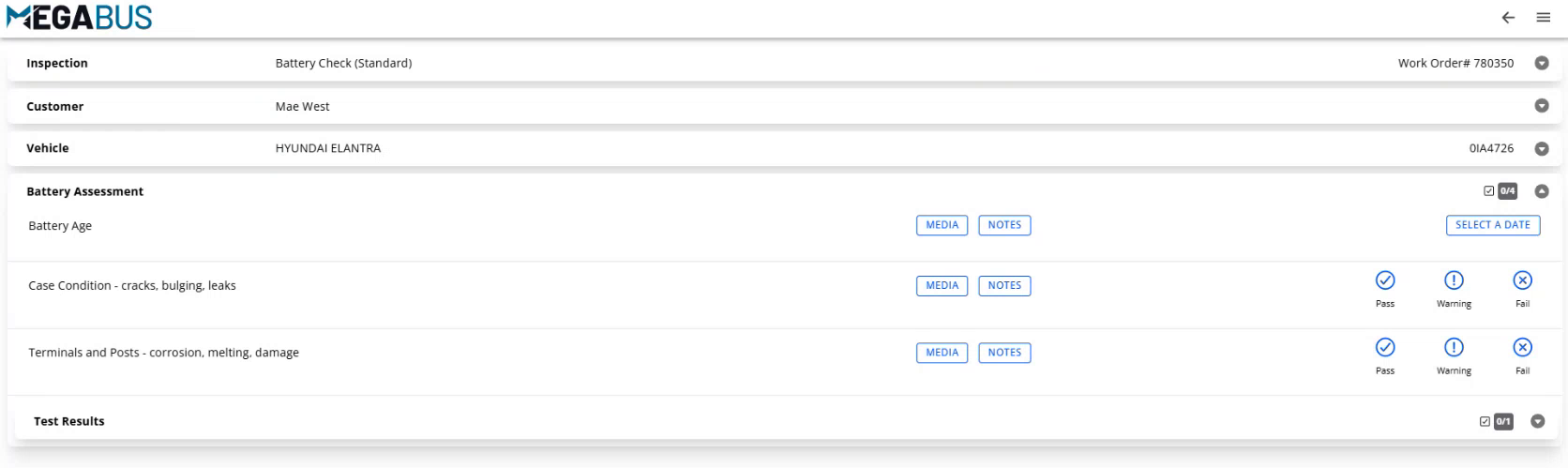
Technicians complete inspections in the Marlin mobile app, failed items are added to orders as pending jobs, and quoted jobs are sent to customers for approval by SMS or email.
Inspections are performed in the Marlin mobile app, not in the desktop program. The desktop program is used to set up templates, add inspections to orders, quote work and send reports.
Setting Up DVI
To set up DVI:
- Enable the Jobs.Enable enterprise setting under System > Company > Settings
- Add job types under System > Items > Job Types
- Add inspection templates under Reports > Workshop Dashboard > DVI > Templates
Job types define the work that failed or warning items can create. Inspection templates define the sections and items that technicians complete.
Adding Job Types
To add job types:
- Select System > Items > Job Types from the menu bar
- Click Add (top-right)
- Enter a Name (e.g. Batteries)
- Assign Reporting Groups or Inspection Templates, if required
- Click Save

See the Job Types help guide for further information.
Adding Inspection Templates
To add inspection templates:
- Select Reports > Workshop Dashboard from the menu bar
- Select DVI > Templates in the menu on the left
- Click New Template (top-right)
- Enter a Name and leave Inspection Template Type as Standard
- Turn on the required Template Settings
- Click Add Section, enter a Section Name and click Add Item
- Enter an Item Name, select an Item Type and select a Job Category
- Click Save
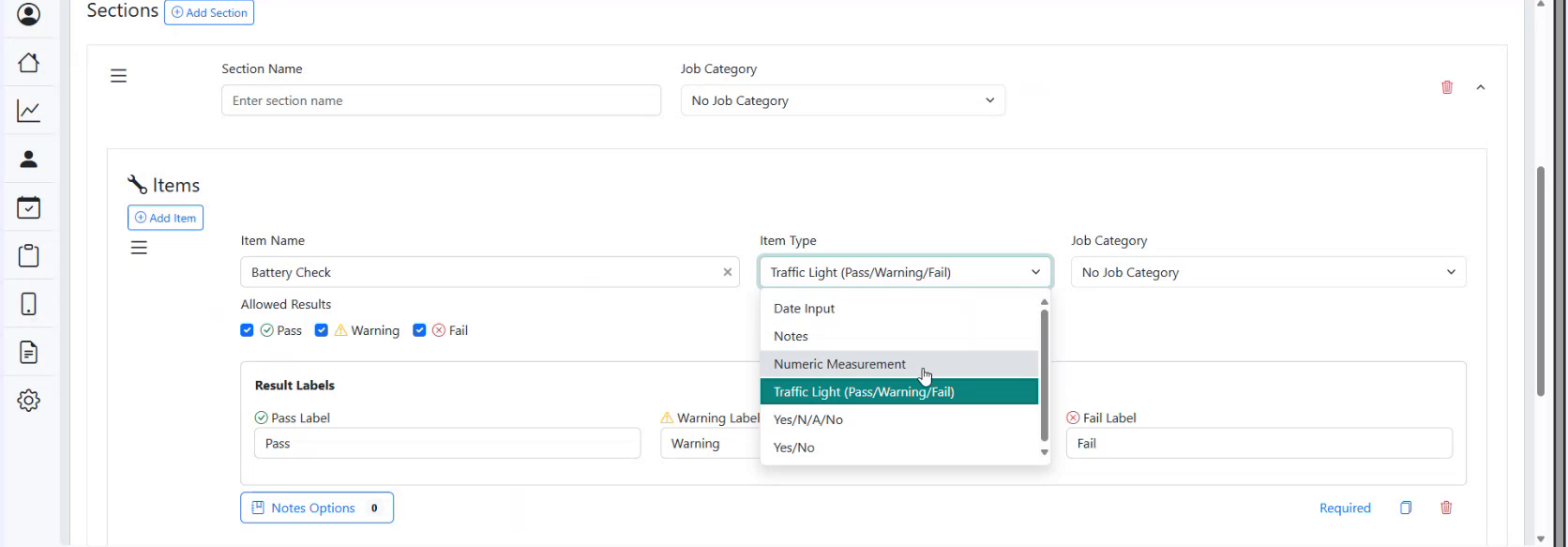
See the Inspection Templates help guide for further information.
Linking reporting groups to job types and inspections to jobs adds jobs and inspections to orders automatically.
Adding and Sending Inspections
Inspections are added to orders in the desktop program by clicking +Inspection, or automatically when jobs with linked inspection templates are added.

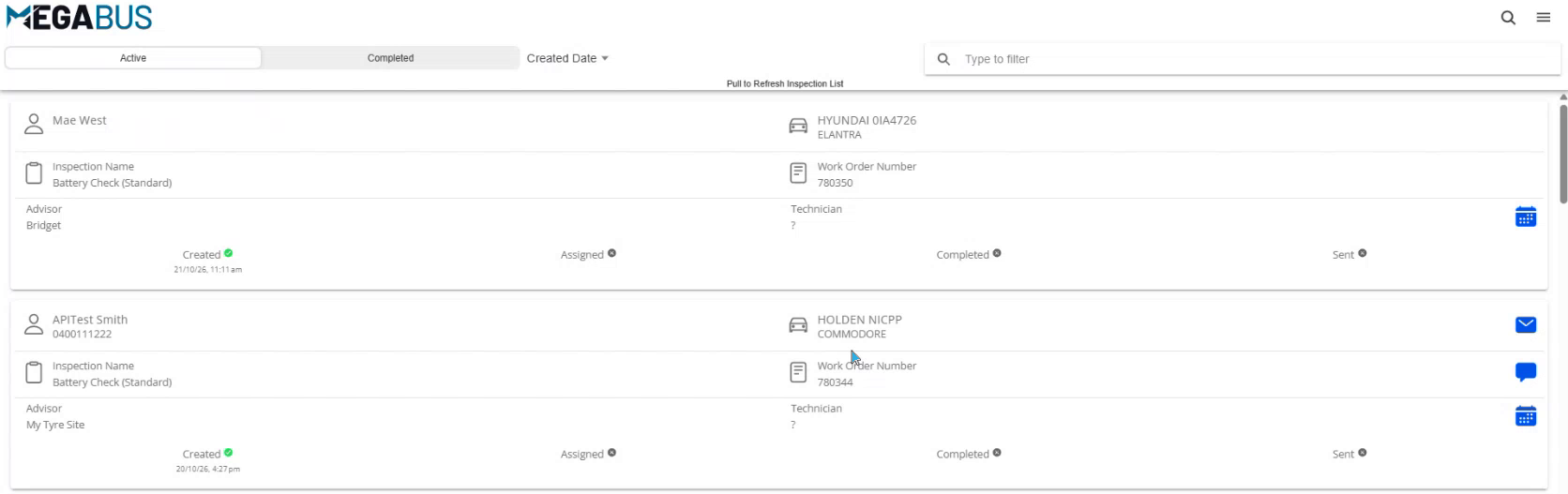
Selecting a Technician and saving orders sends inspections to the Marlin mobile app.
Inspections do not need to be inside jobs.
Performing Inspections
Inspections are performed in the Marlin mobile app.
Technicians open the menu, select DVI, and complete each item.
- Traffic light items: tap Pass, Warning or Fail
- Date and notes items: select the date or enter the text
- Numeric measurement items: enter the value, which sets the result from the template constraints
- Media and notes: add photos, videos, notes and recommendations to items
- Transfer: tap the Transfer icon to send failed and warning items back to orders
Quoting and Approvals
Back in the desktop program, refresh orders to see inspection results. Jobs are added for each failed item, and for warning items when Include warning on transfer is on.
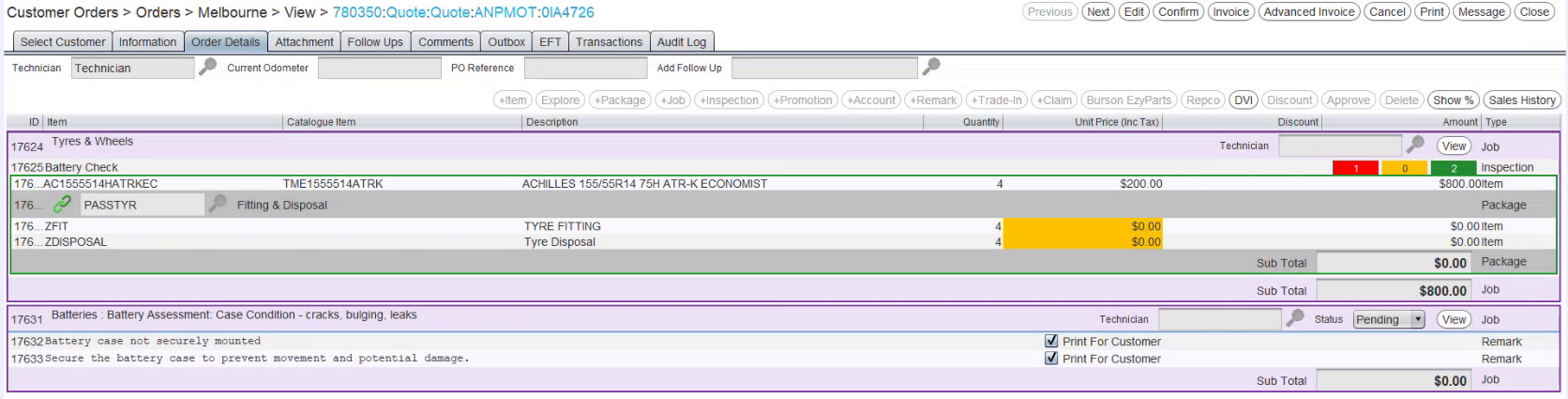
To quote and send inspections:
- Add parts and labour to the jobs
- Click DVI at the top-right of the details list
- Click View Report in the Marlin Connect window
- Click Send Report once all items are checked
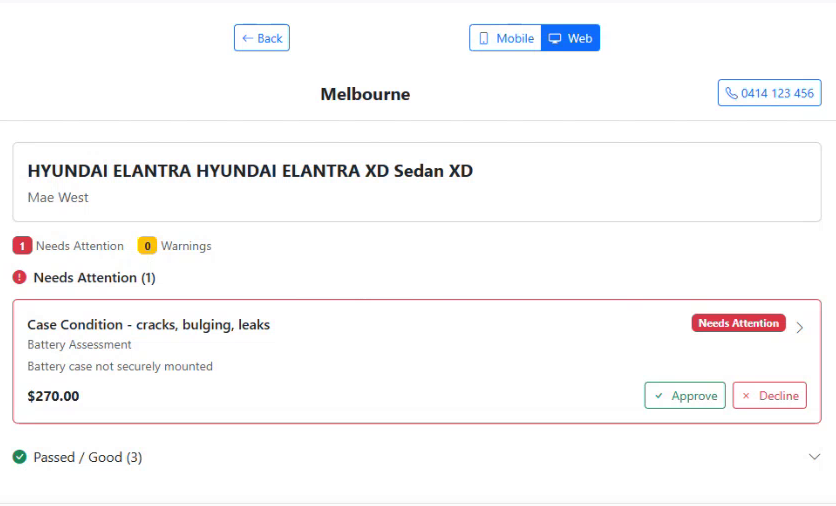
Customers open the link, approve or decline each quoted job, and tap Submit. Job statuses update accordingly.
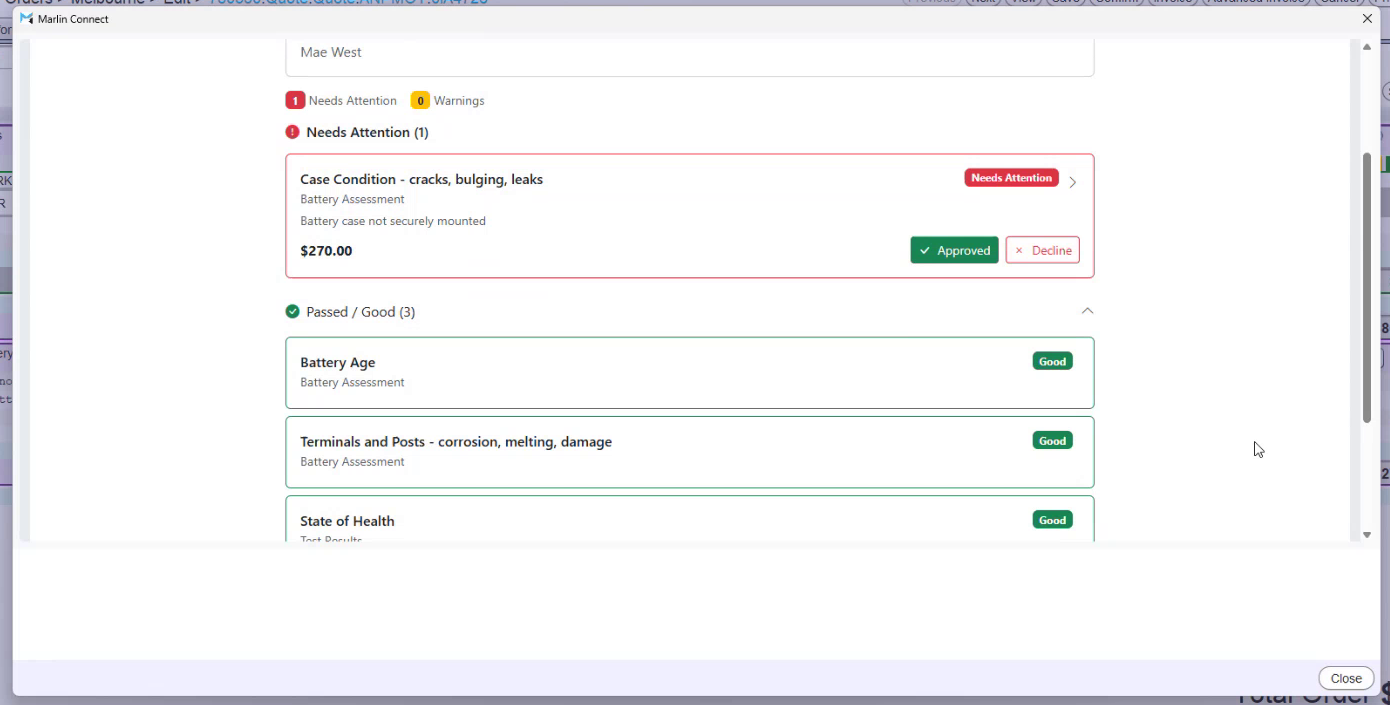
- Declined jobs stay on orders, greyed out, and are excluded from totals and final invoices
- Approval histories are available by clicking Edit in job headers, then the Approval History tab
Customers approve or decline jobs as a whole, and need a contact with an email address or phone number to receive reports.
DVI Reports
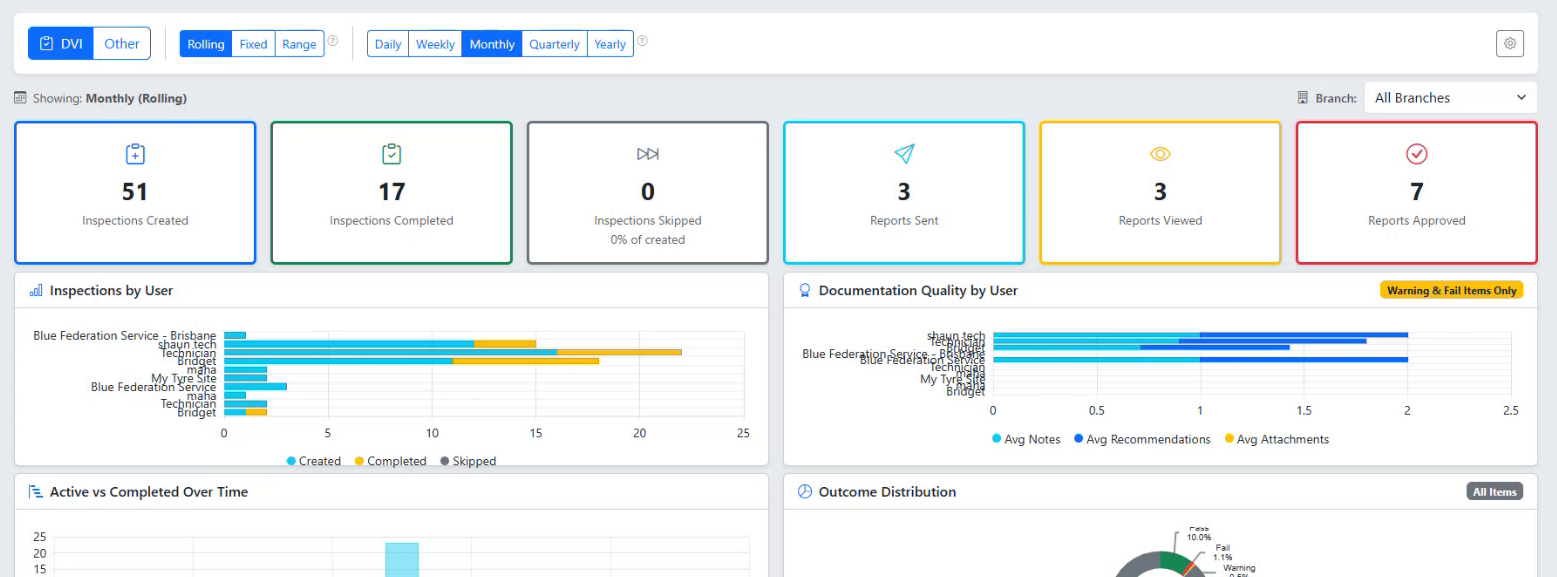
Select Reports > Workshop Dashboard, then DVI, to open the DVI Dashboard.
See the Job Types, Jobs and Inspection Templates help guides for further information.