Marlin Tyre and Mechanical Workshop Software enables card payments on Windcave terminals using MPay integrated EFTPOS.

Taking payments, deposits, invoices and customer account payments all follow the usual process when selecting a Windcave integrated eftpos terminal.
The Windcave integration and initial terminal(s) are set up by Megabus.
If required, branches can then add additional terminals themselves, using the provided credentials.
To enable Windcave Integrated EFTPOS, please contact the Megabus Support Team.
Taking Payments
To take a payment:
- Enter the amount to be paid against the Windcave payment option
- Click Invoice to send the payment to the terminal
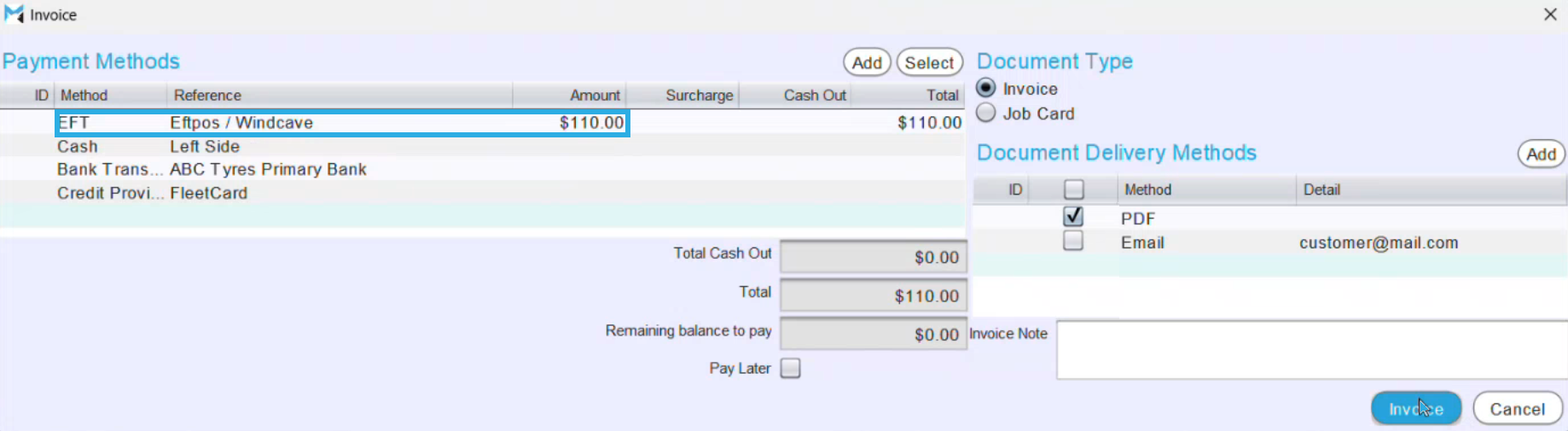
The Windcave Payment window will open, showing each prompt as the customer completes the payment on the terminal.
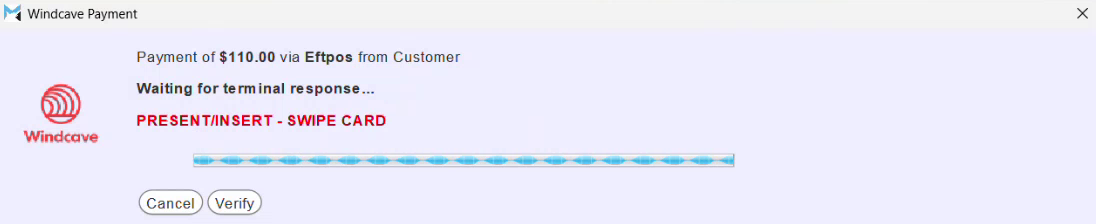
Cancelling Payments
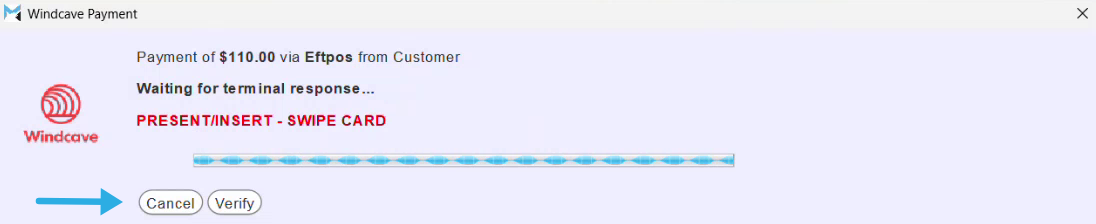
To cancel a payment:
- Click Cancel in the Windcave Payment window
Refunds and Credits
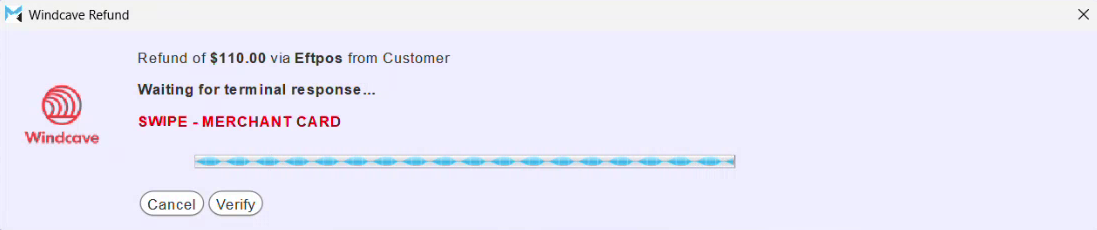
To refund a payment:
- Clone the customer order as a Credit
- Invoice the credit order (click Credit)
- Select the Windcave eftpos terminal
- Click Credit to send the refund to the terminal
- Follow the instructions on the terminal
Manual Card Entry
To take a manual card entry payment:
- Invoice the order as usual
- Press the yellow button on the terminal
- Select MOTO or Manual
- Follow the instructions on the terminal
Checking Terminals
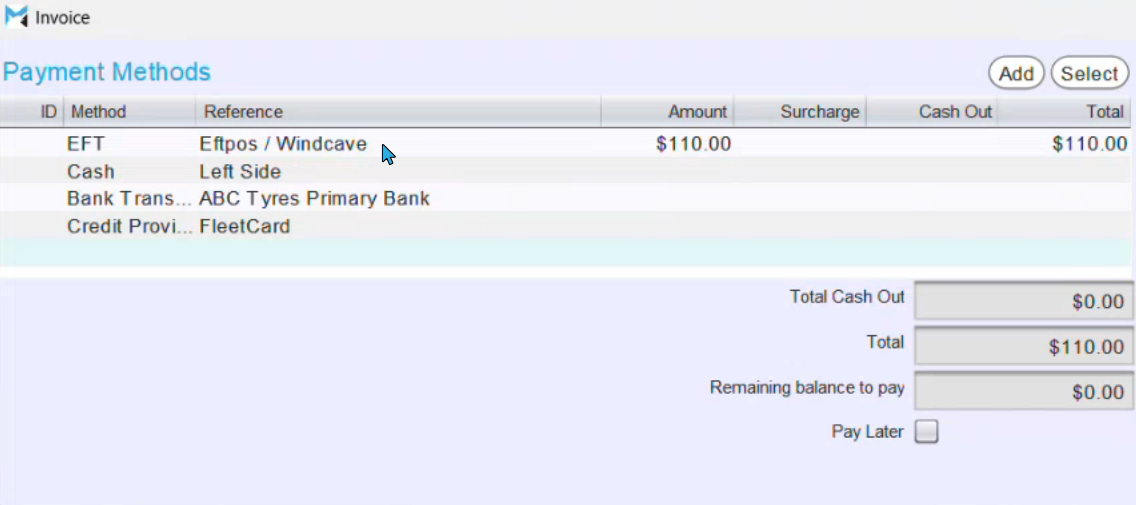
Click the Eftpos / Windcave row to open the EFT Detail window.
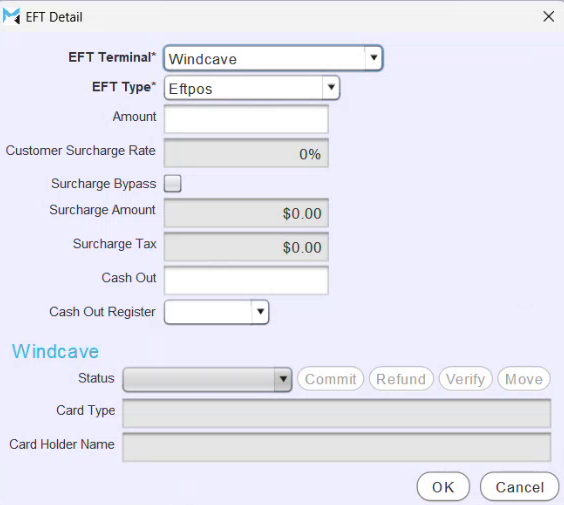
The Windcave section at the bottom shows whether the terminal is integrated and who it is integrated with (terminals that are not integrated do not show this section).
Other payment details can also be edited here, if required.
To close the window, click Cancel.
The Status field stays empty until a payment has been sent to the terminal.
Adding Terminals
If required, branches can add terminals using the provided credentials.
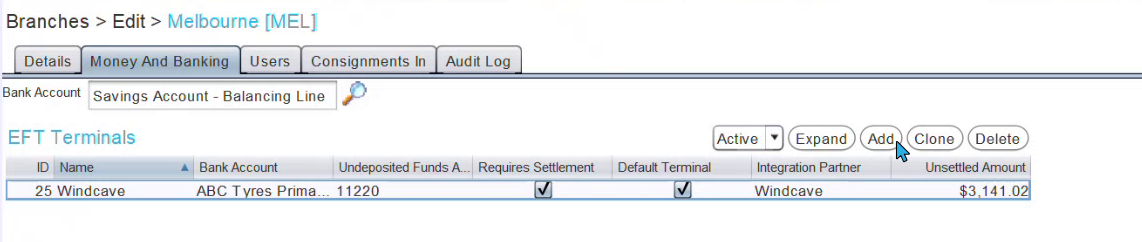
To add a terminal:
- Go to System > Company > Branches
- Open the branch in Edit mode
- Click the Money And Banking tab at the top
- Click Add at the top-right of the EFT Terminals list
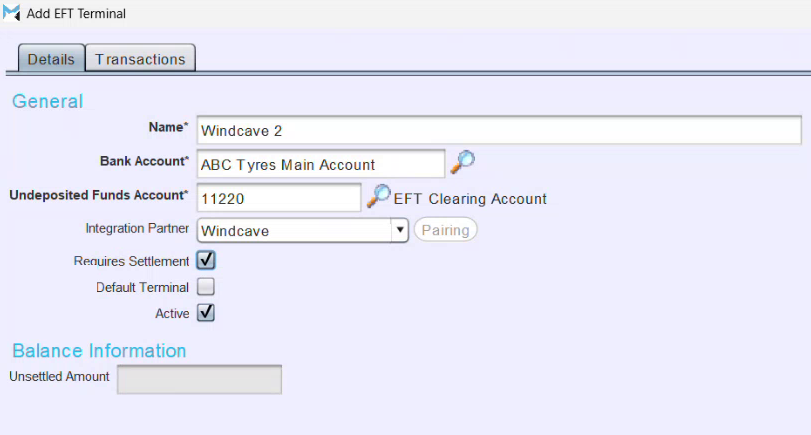
In the Add EFT Terminal window that opens:
- Enter a Name for the terminal
- Select the Bank Account where the funds are deposited
- Select the Undeposited Funds Account where funds are held until settlement
- Set Integration Partner to Windcave
- Tick Requires Settlement
- Leave Default Terminal unticked, if the branch already has a default terminal
- Click OK
Pairing Terminals
Once added and saved in the system, terminals still need to be paired, using their provided Station IDs.
To enable pairing:
- Click the View button at the top-right of the Branches window
- Save the changes when prompted

Double-click the new terminal to open its Details pop-up.
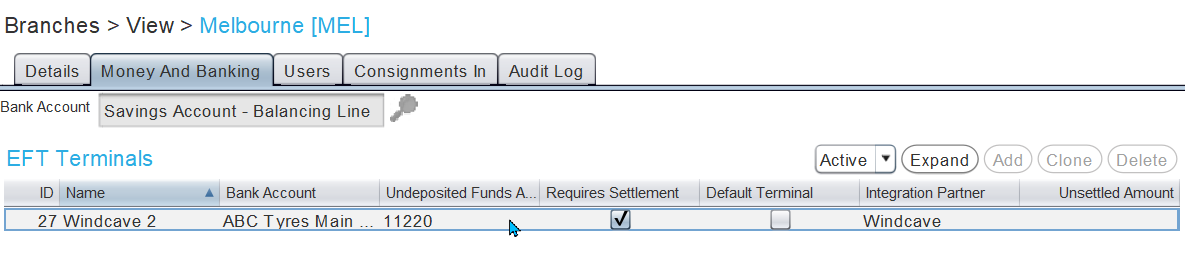
Click the Pairing button to the right of the Integration Partner drop-down.
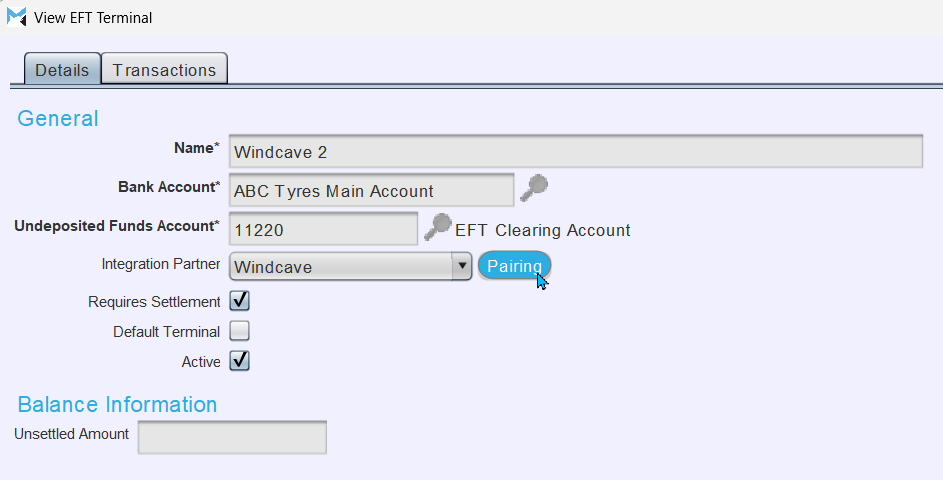
The Pairing button will not be available if the branch is in Edit mode.
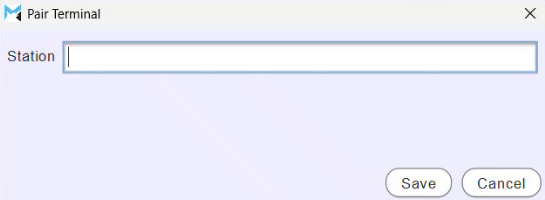
In the Pair Terminal pop-up that opens:
- Enter the terminal's provided Station ID
- Click Save
You can then Close the Branches module (the Station ID will still be saved).