Marlin Tyre and Mechanical Workshop Software's branch-specific functions and modules can be customised using its branch settings.
Branch settings can be viewed and edited by selecting System > Company > Settings from the menu bar.
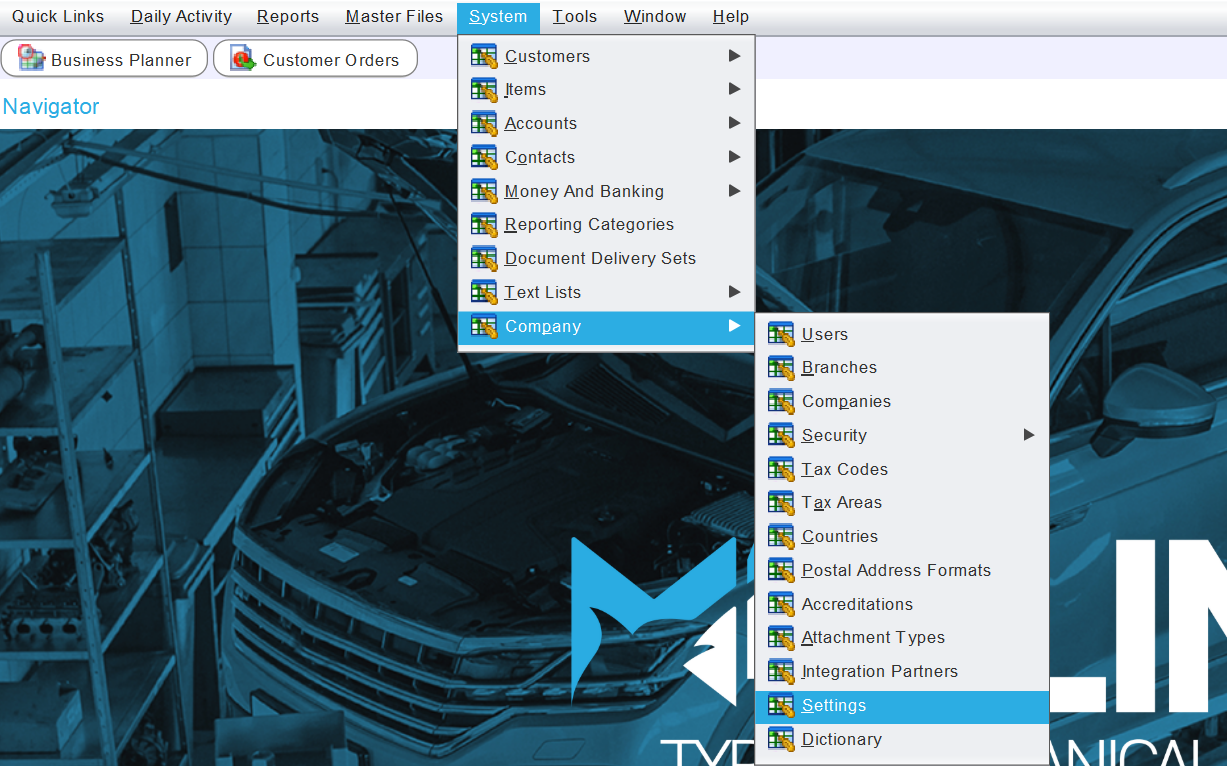
The settings module will open on the Enterprise Settings tab.
At the top of the module window, click on the Branch Settings tab.

Settings for different branches can be accessed using the Branch picker to the top-left.
Descriptions of selected settings can be read in the section on the right.
Specific settings can be searched for by clicking on the Name toolbar to show settings from all setting categories, and then clicking in the Name field of any setting and typing the search terms.
General Branch Settings
System > Company > Settings > Branch Settings
By default the Branch Settings tab will open on the General category.
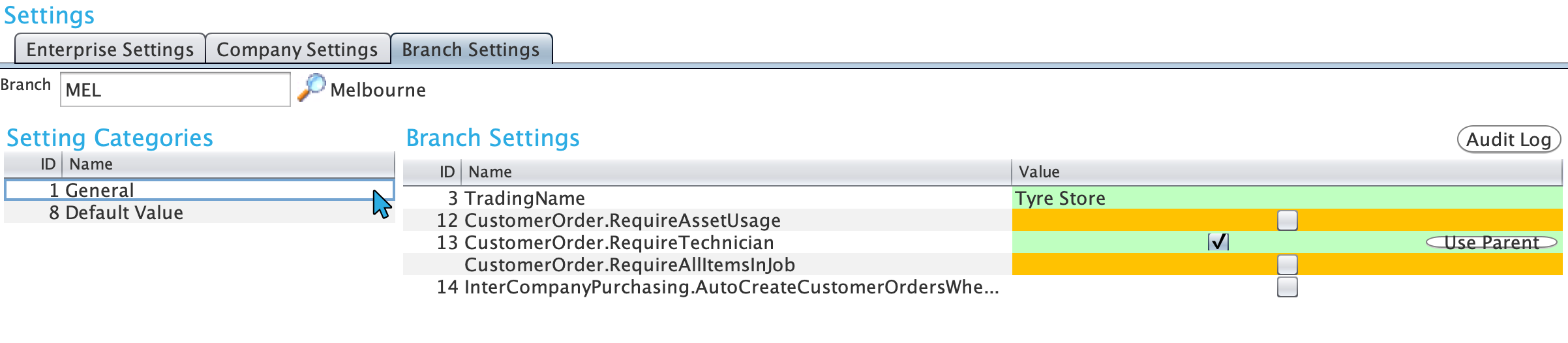
Settings marked † can also be set at Enterprise and Company level. The most specific value applies: Branch, then Company, then Enterprise.
Branch Details
| Setting | Description |
|---|---|
| Trading Name † TradingName |
Sets the trading name printed on documents and reports. Uses the Enterprise Name when blank. |
Orders
| Setting | Description |
|---|---|
| Required Asset Usage on Invoice † CustomerOrder.RequireAssetUsage |
Requires the current odometer reading when invoicing orders that have an asset. |
| Required Technician † CustomerOrder.RequireTechnician |
Requires a technician on confirmed Sales Orders. |
| Require all order lines to be in a Job † CustomerOrder.RequireAllItemsInJob |
Requires every order line to sit in a Job before the order saves. Has no effect unless Enable Jobs is on in the Enterprise Settings. |
Inter Company Purchasing
This setting applies when Enable Inter Company Purchasing is on in the Enterprise Settings.
| Setting | Description |
|---|---|
| Create Customer Order when Receiving InterCompanyPurchasing.AutoCreateCustomerOrdersWhenReceiving |
Creates the Customer Order for this branch when buying branches receive or invoice draft Purchase Orders, not only when they submit them. |
Default Branch Values
System > Company > Settings > Branch Settings
From the Setting Categories list on the left of the Branch Settings tab, select Default Value.

Each setting sets the default value of the matching field when new records are created.
| Setting | Field defaulted |
|---|---|
| Default Registration Issuer † CustomerAsset.DefaultRegistrationIssuer |
Registration Issuer (state) on new assets |